Fingerprint Browser TikTok Live Proxy Configuration Guide
This guide will help you configure TikTok Live proxy services in fingerprint browsers (AdsPower and Bitbrowser).
AdsPower Configuration
AdsPower is a professional fingerprint browser management tool suitable for social media marketing and multi-account management.
Prerequisites
- Installed AdsPower client
- Created AdsPower account
- Obtained proxy server information
Configuration Steps
1. Get Proxy Information
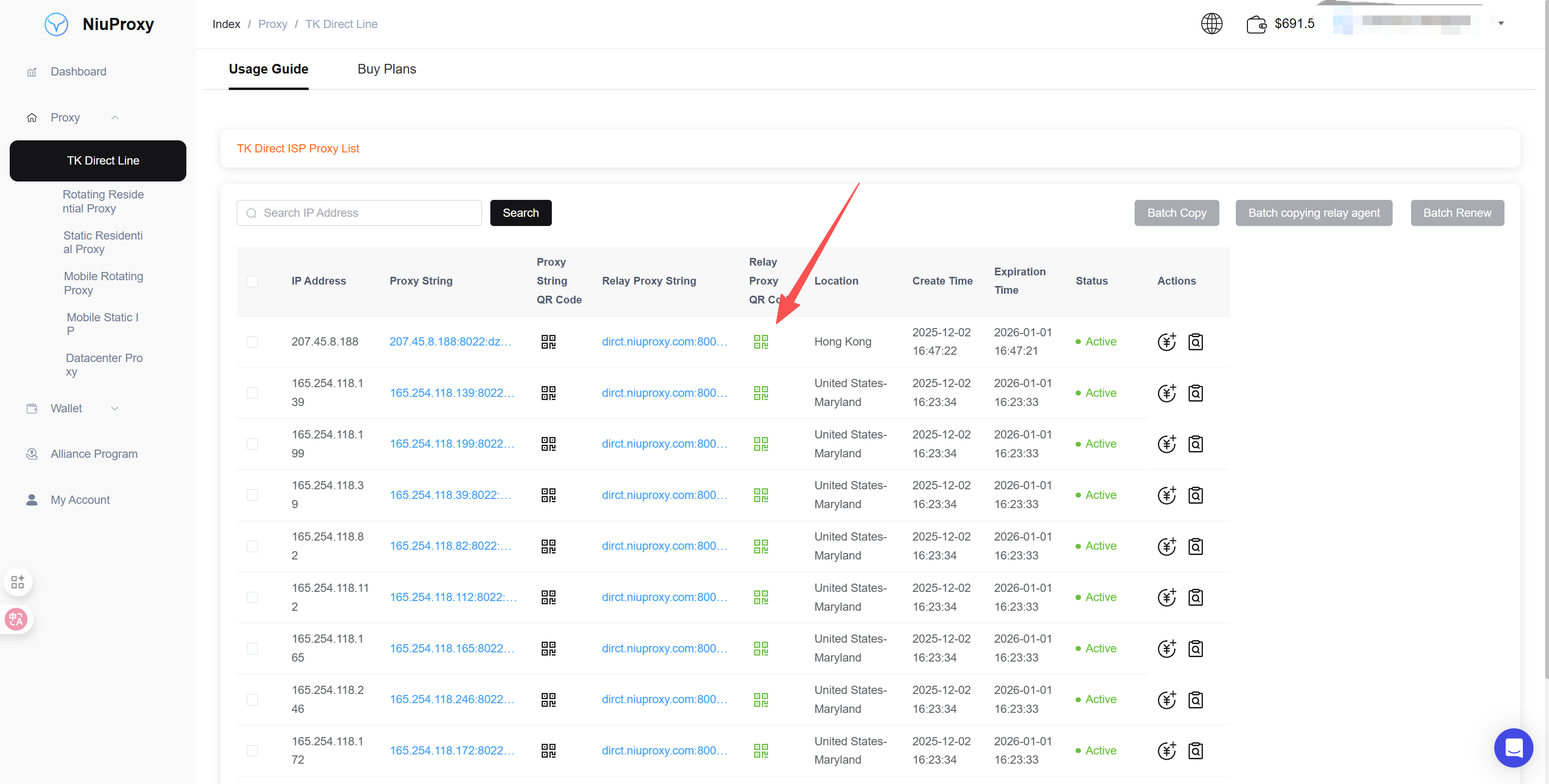
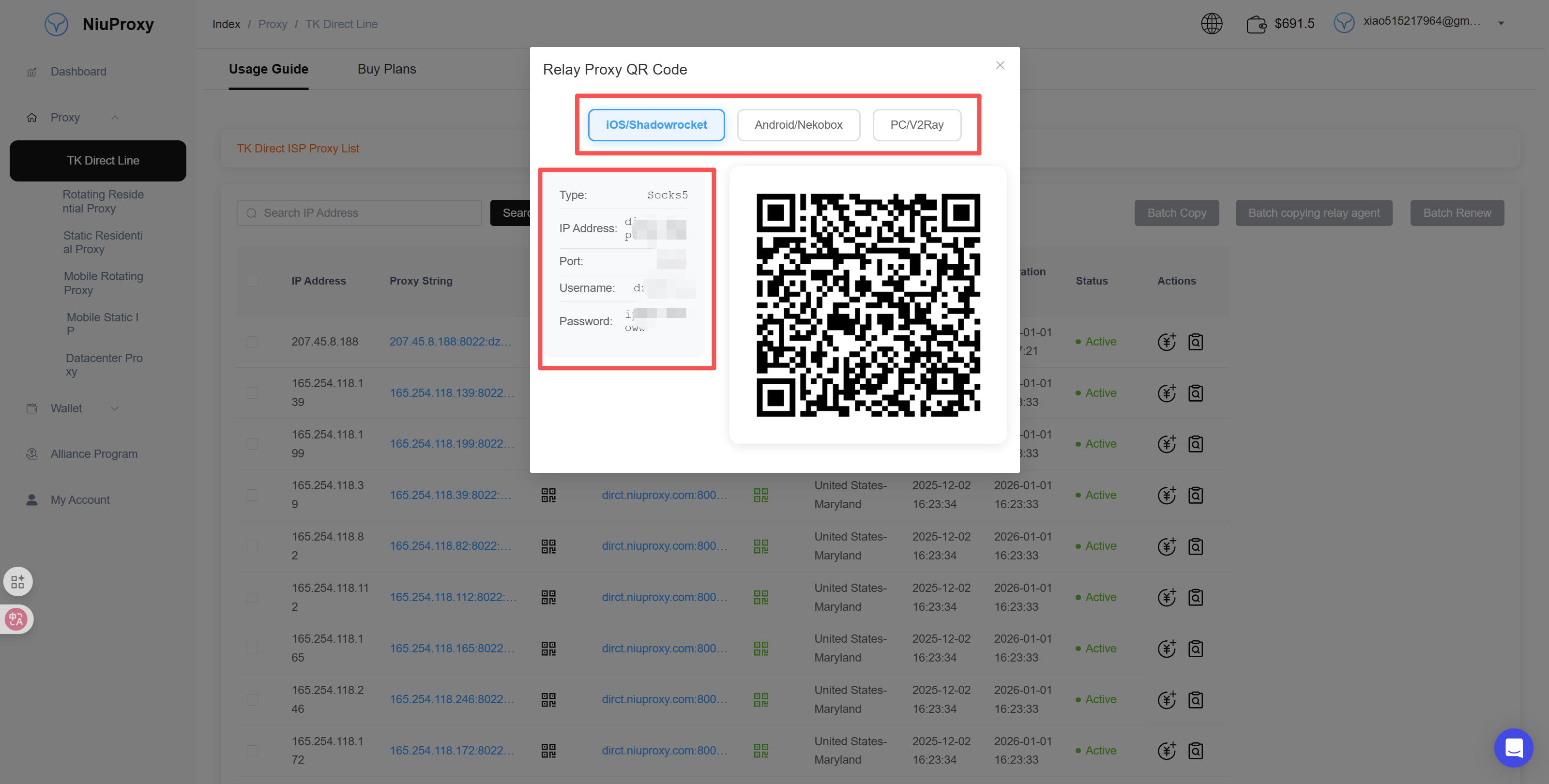
Log in to the NiuProxy management panel and obtain proxy information:
- Proxy address: dirct.niuproxy.com
- Port: Your assigned port
- Protocol type: HTTP, HTTPS, or SOCKS5
2. Open AdsPower
Launch AdsPower and log in to your account.
3. Create New Profile
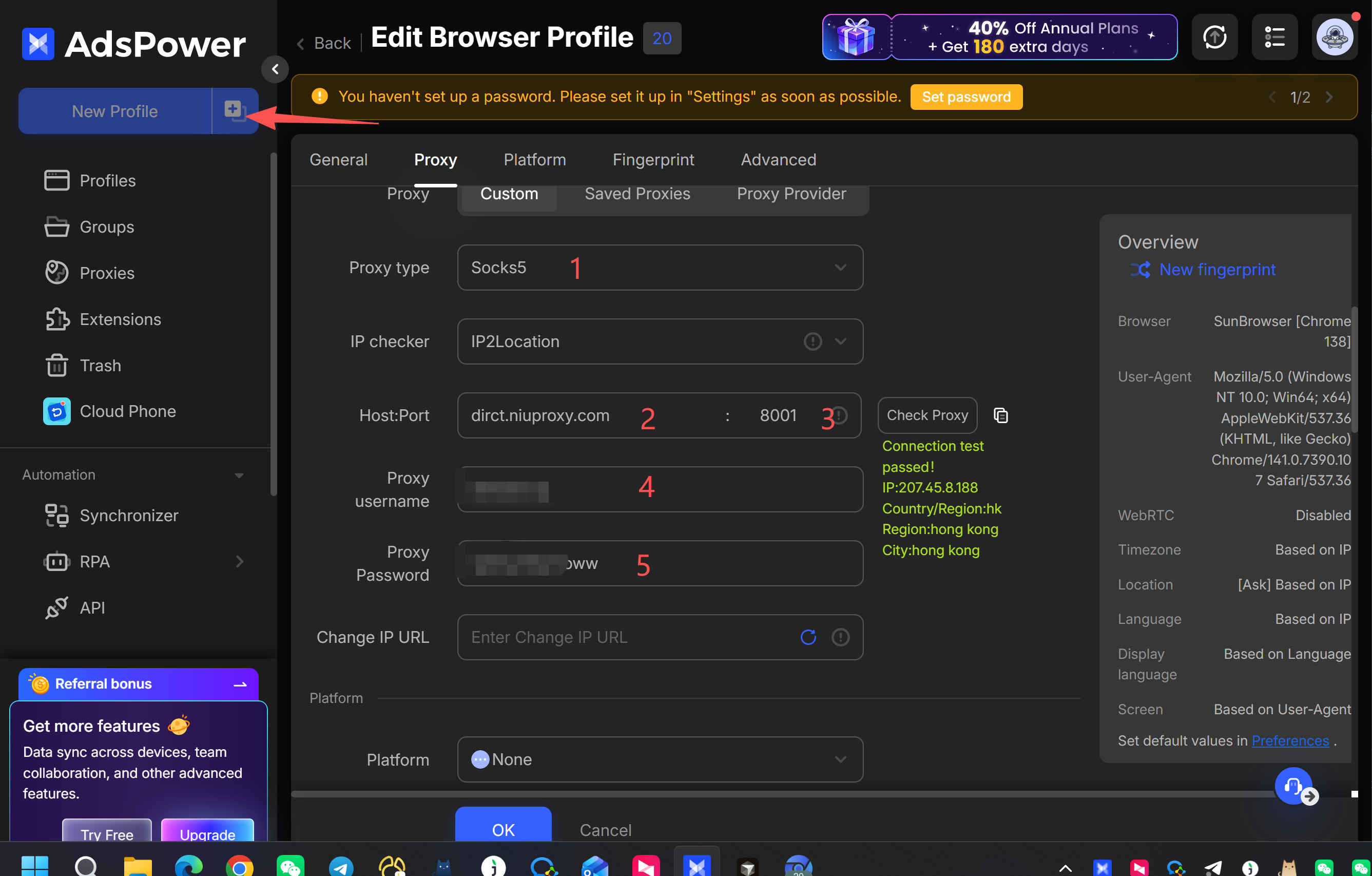
- Click "Create Profile" button
- In the proxy settings section, select proxy type
- Fill in proxy information:
- Proxy type: Select HTTP, HTTPS, or SOCKS5
- Proxy host: dirct.niuproxy.com
- Proxy port: Your assigned port
- Username/Password: Fill in if required
4. Test and Save
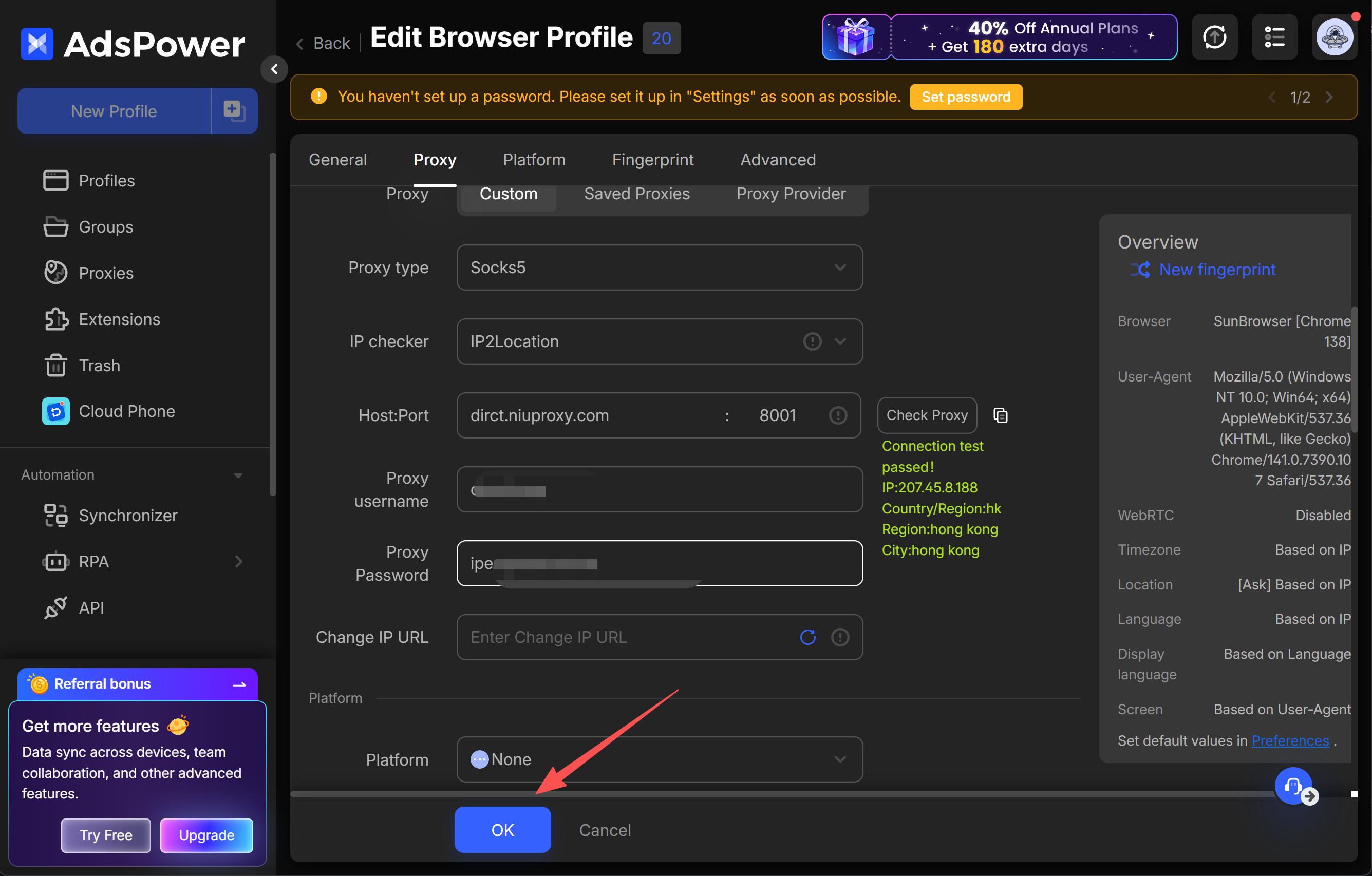
- Click "Test Proxy" button to verify connection
- Successful test will display IP information and location
- Click "Save" to complete profile creation
Bitbrowser Configuration
Bitbrowser is a fingerprint browser tool focusing on e-commerce and social media account management.
Prerequisites
- Installed Bitbrowser client
- Created Bitbrowser account
- Obtained proxy server information
Configuration Steps
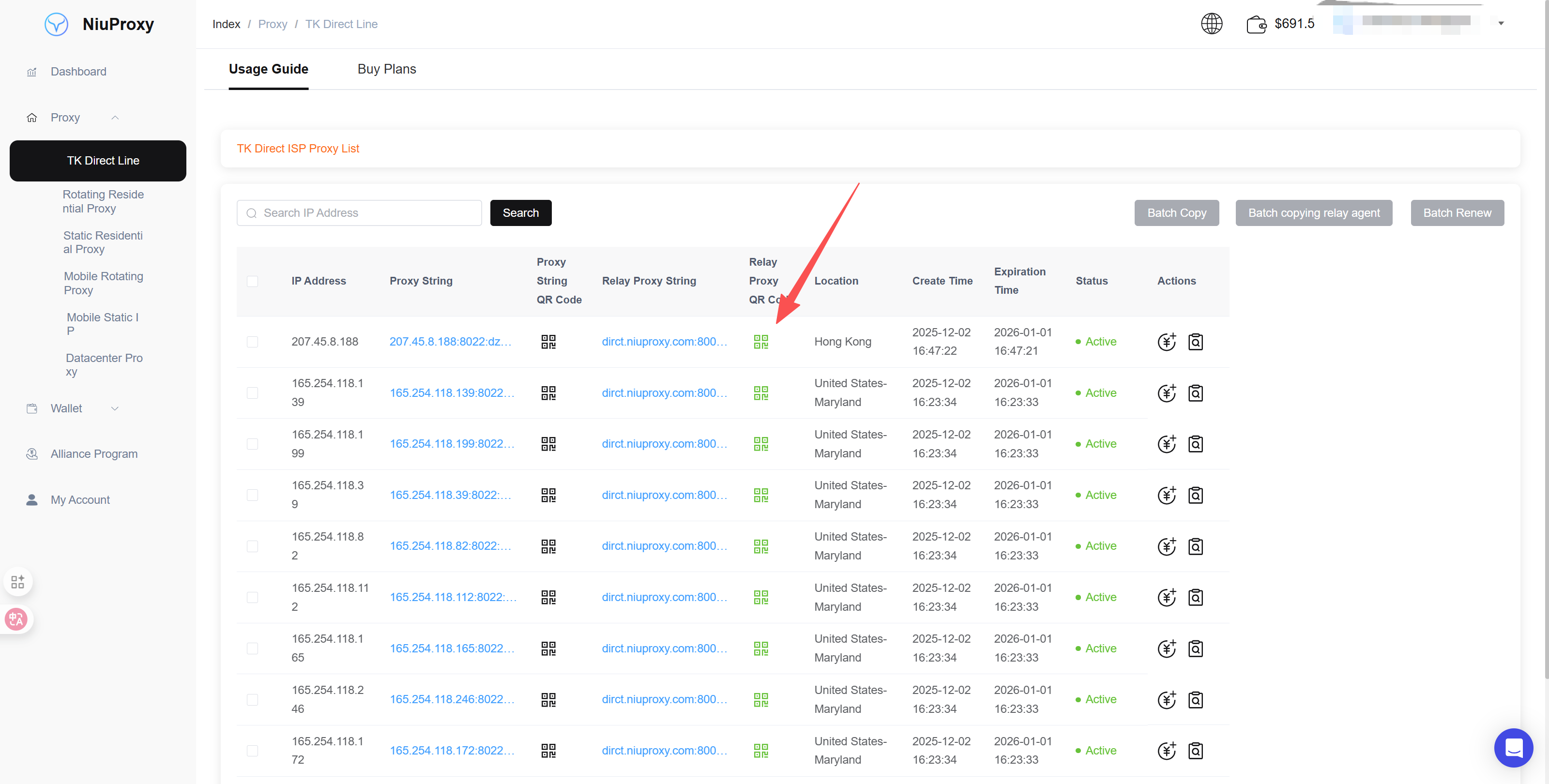
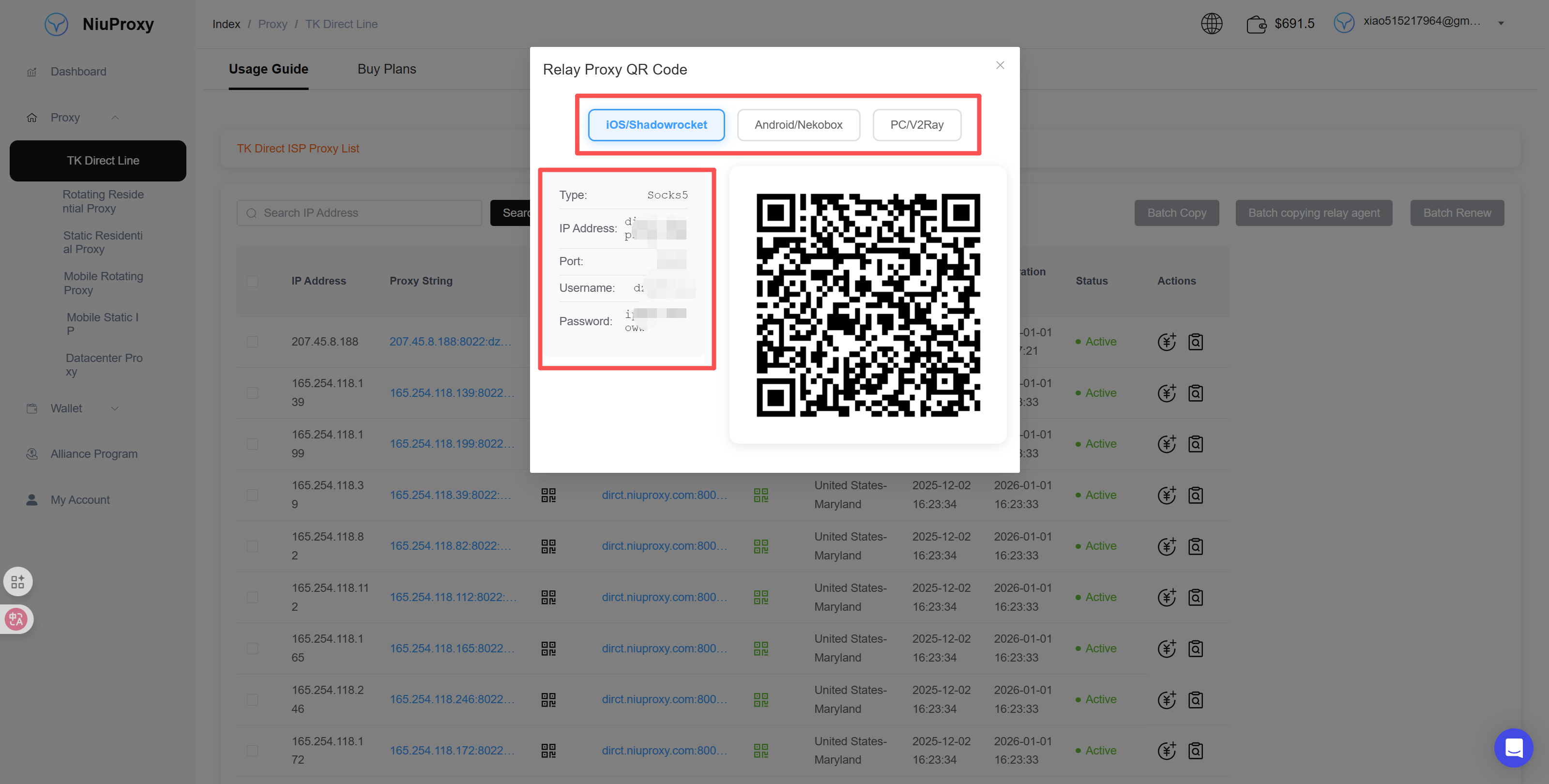
1. Get Proxy Information
Log in to NiuProxy management panel and get proxy configuration information.
2. Open Bitbrowser
Launch Bitbrowser client and log in to your account.
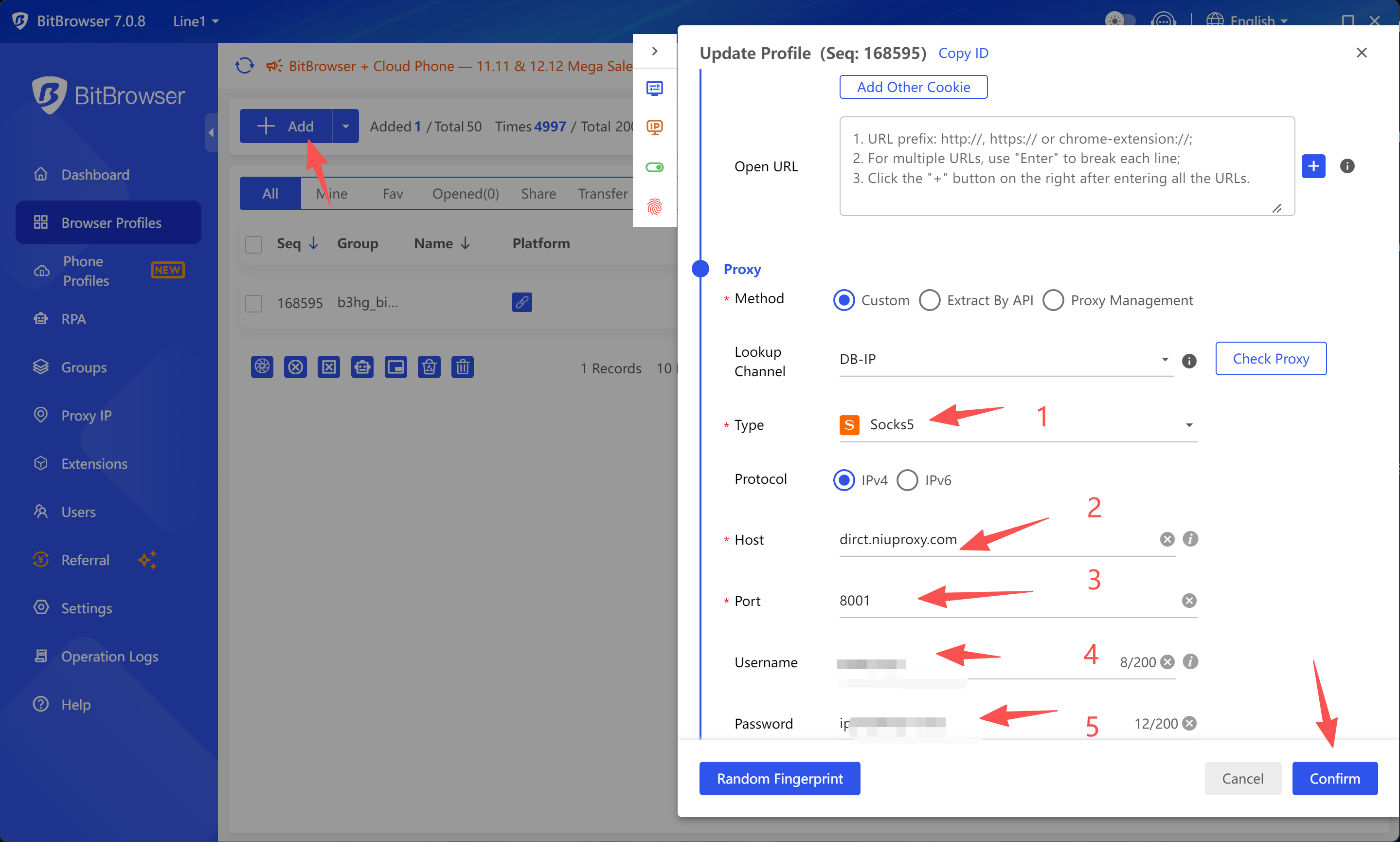
3. Create Browser Profile
- Click "Create Browser" button
- In the proxy configuration section:
- Proxy type: Select SOCKS5, HTTP, or HTTPS
- Proxy address: dirct.niuproxy.com
- Proxy port: Your assigned port
- Authentication information: Fill in username/password if needed
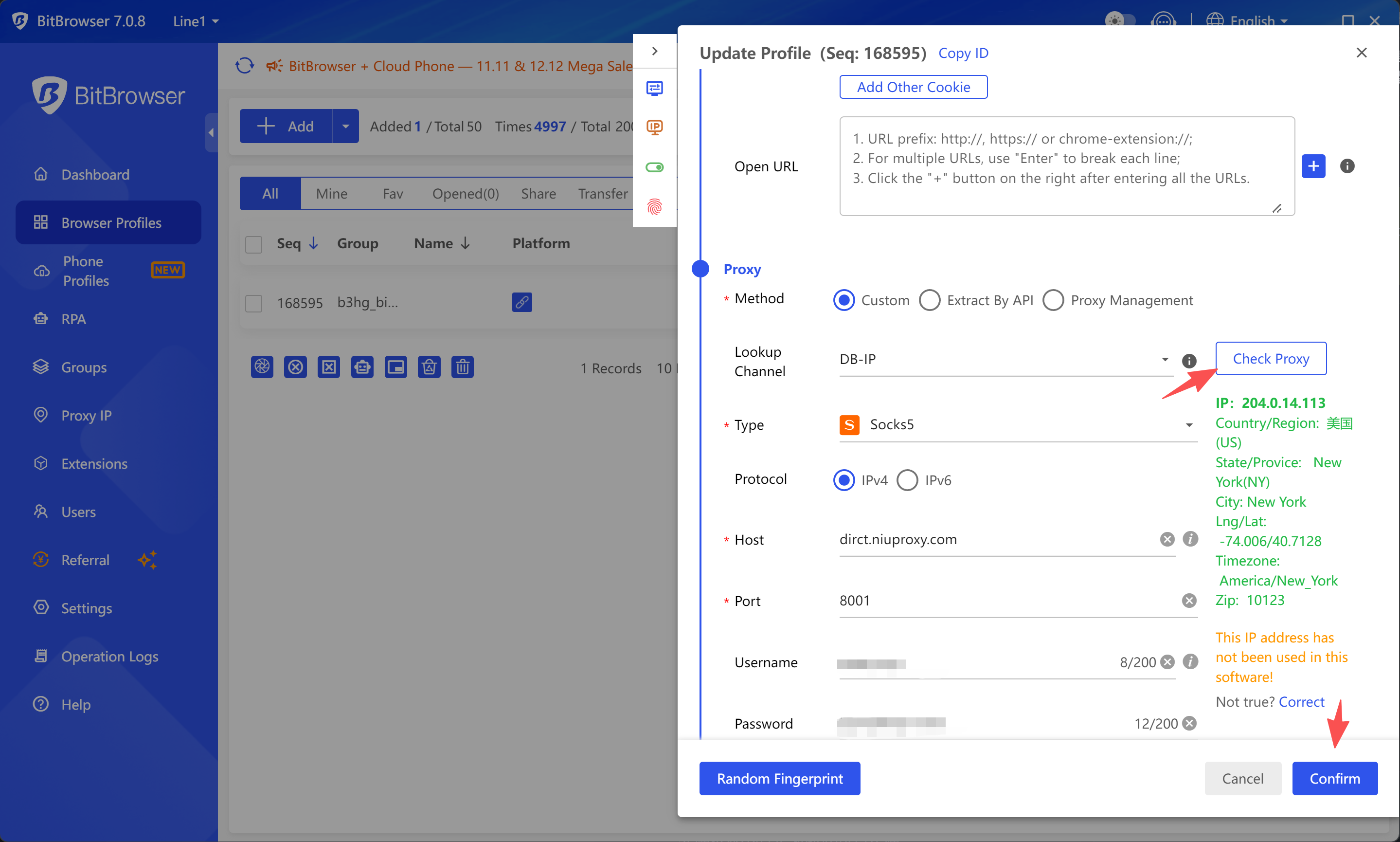
4. Test Connection
- Click "Test Proxy" button
- Successful test will display current IP address and geographical location
- Click "Save" to complete configuration
Troubleshooting
Proxy Connection Failure
- Verify proxy address, port, and protocol type are correct
- Check if network connection is normal
- Try switching proxy protocol type
High Latency
- Try connecting to another available proxy server
- Check local network environment
- Verify no firewall blocking connection
IP Not Changing
- Ensure proxy configuration is saved
- Restart the browser profile
- Clear browser cache and reconnect
Authentication Failure
- Verify username and password are entered correctly
- Check if proxy account is expired
- Contact NiuProxy customer support to confirm account status
Notes
- It's recommended to test proxy connection before creating profiles to ensure normal operation
- Different fingerprint browsers may have slightly different interface layouts, adjust according to actual situation
- Change proxy password regularly to ensure account security
- Avoid using the same proxy on too many profiles to prevent account association