Chrome Browser TikTok Live Proxy Configuration Guide
Google Chrome is an open-source web browser developed by Google, known for its speed, security, and rich extension ecosystem. This tutorial will guide you on how to configure NiuProxy in Chrome browser.
Prerequisites
- Chrome browser installed
- NiuProxy account with available proxy services
- Obtained proxy server address and authentication information
Configuration Steps
Step 1: Get Proxy Information
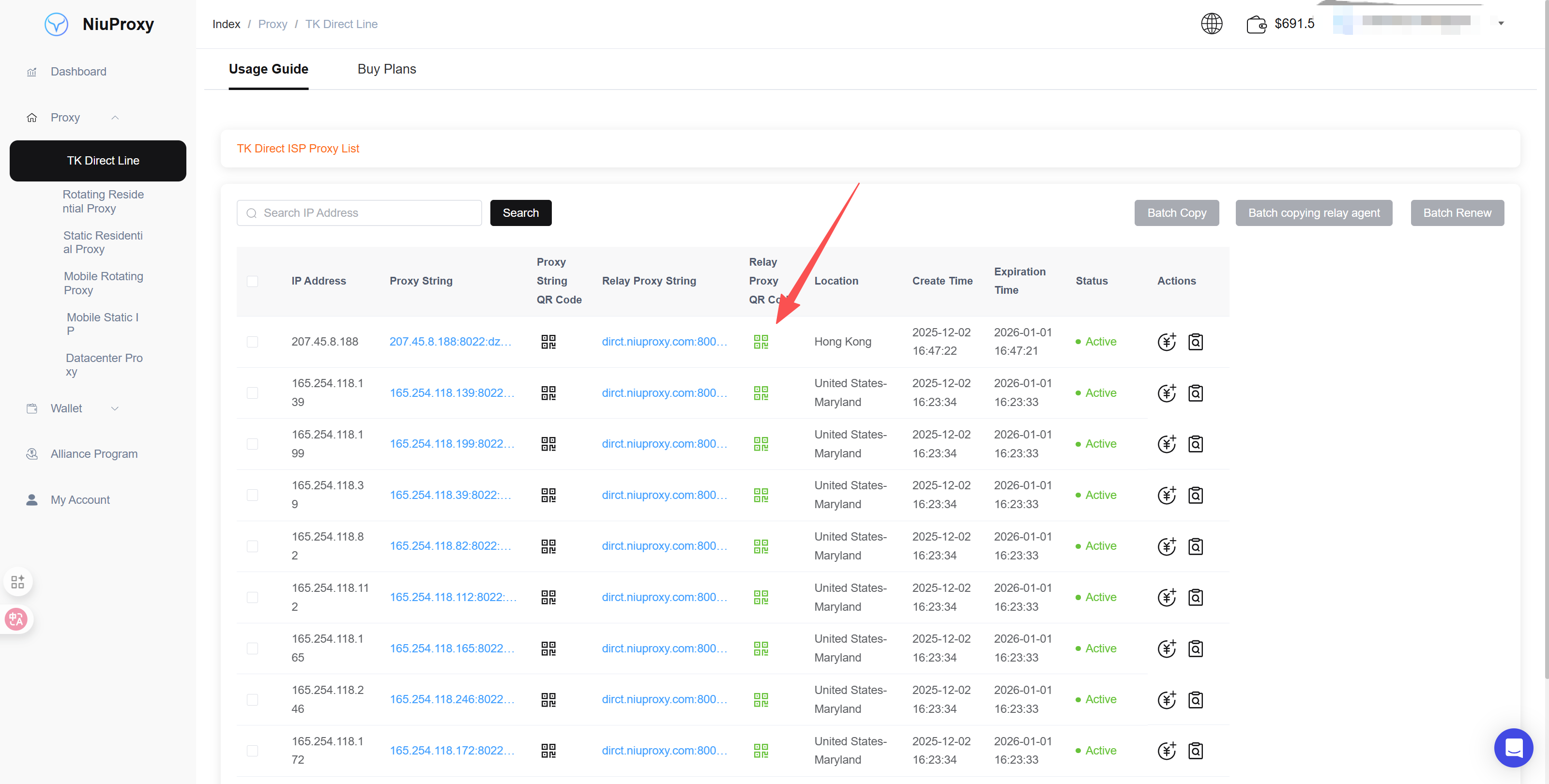
- Log in to NiuProxy management panel
- Go to "Proxy Management" page
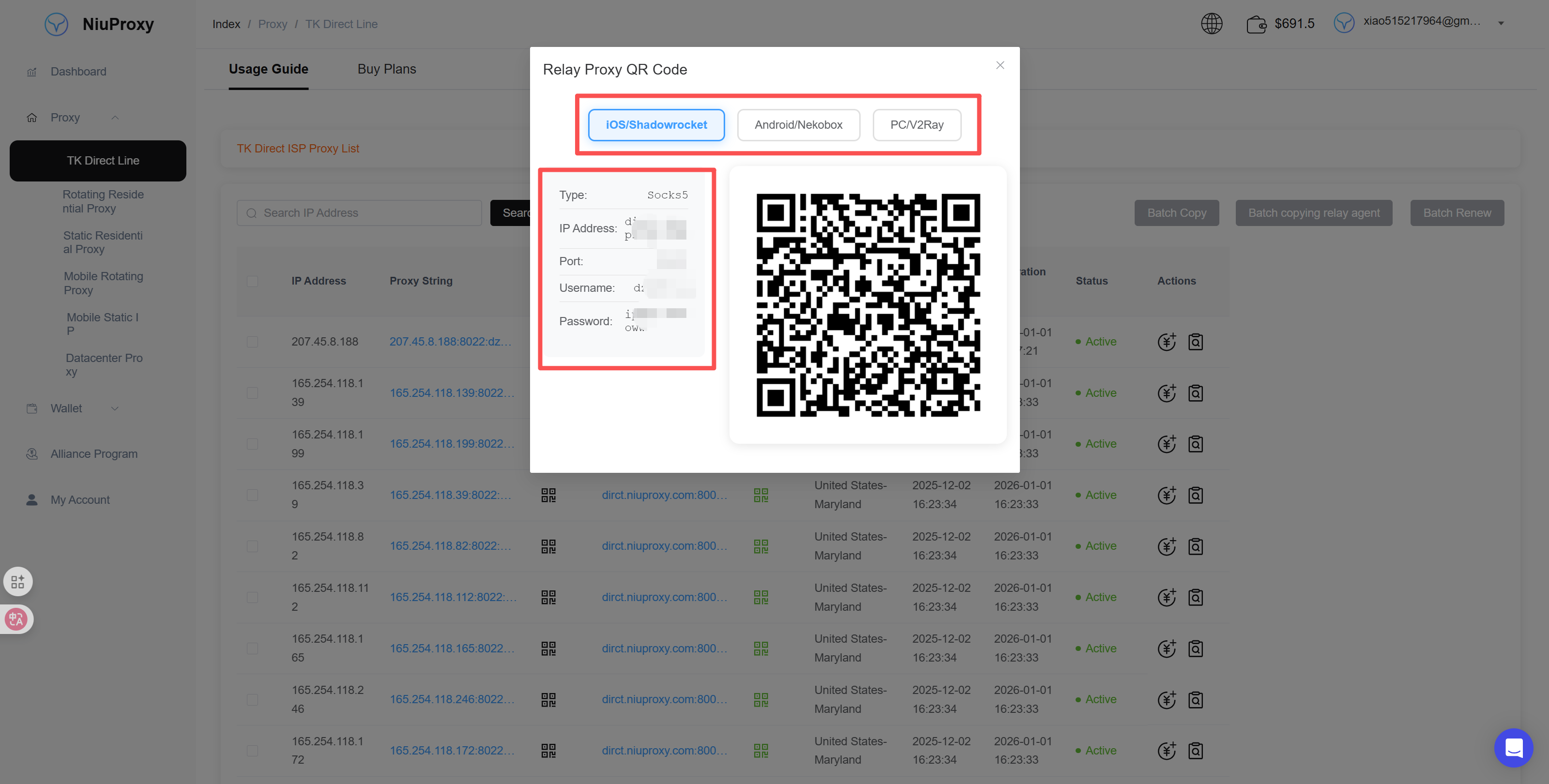
- Record the proxy server address, port, username, and password
Step 2: Open Chrome Settings
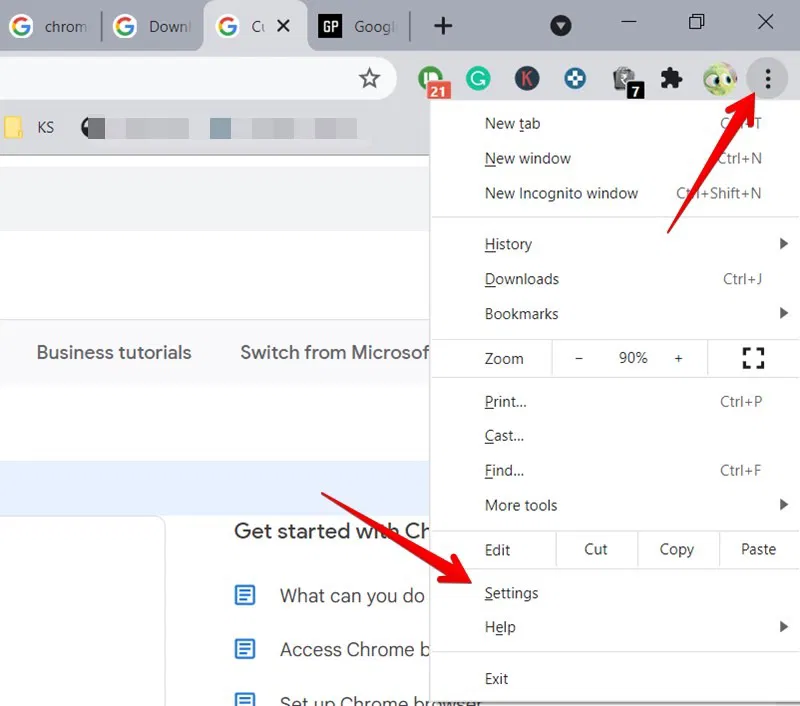
- Click the three-dot menu icon in the top right corner
- Select "Settings" from the dropdown menu
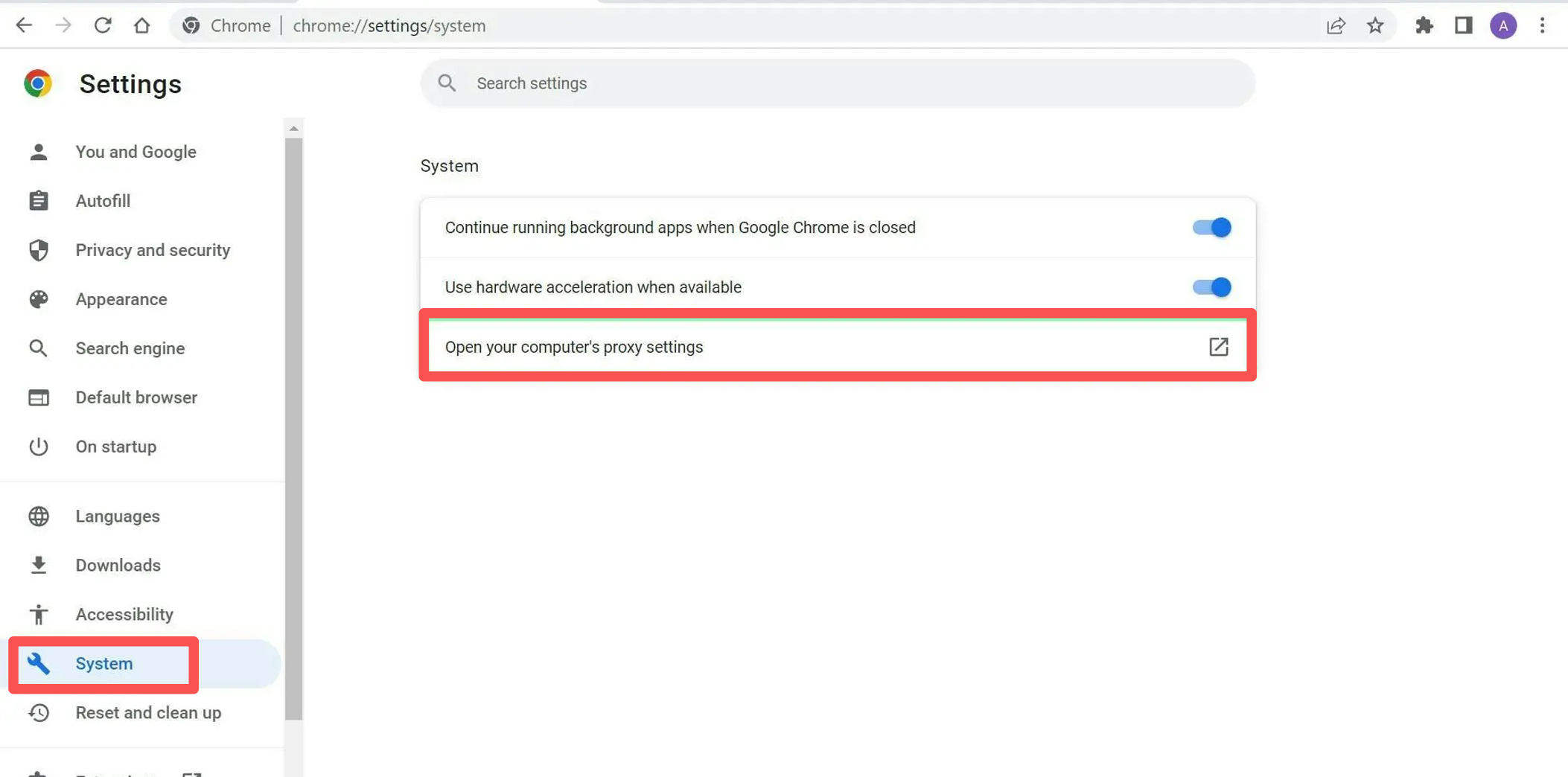
Step 3: Open System Proxy Settings
- Click "System"
- Select "Open your computer's proxy settings"
Step 4: Configure Proxy
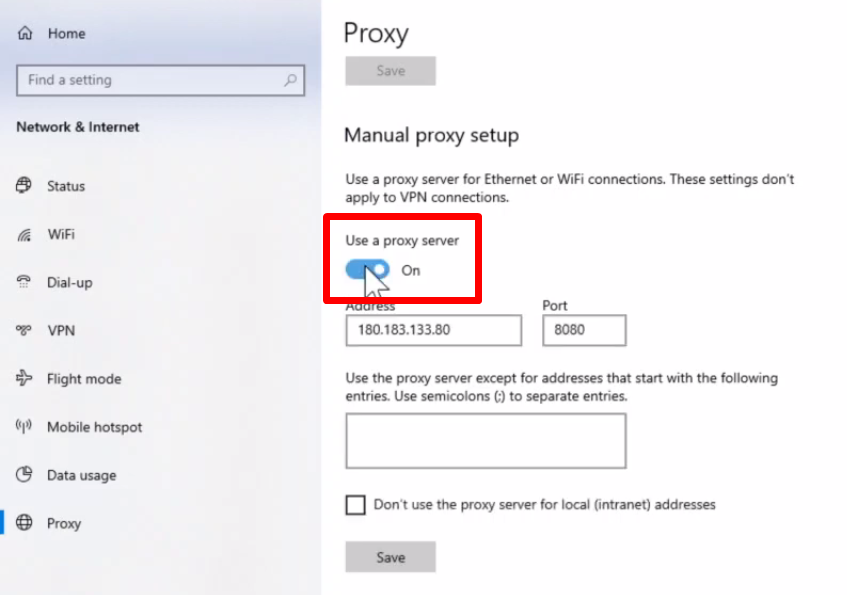
- Scroll to "Manual proxy setup"
- Enter host address and port number
- Click "Save" to apply settings
Step 5: Use Proxy
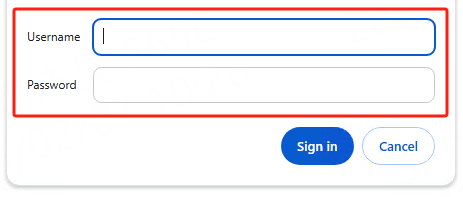
After completing the proxy configuration, you will be prompted to enter the proxy account and password when accessing websites for the first time.