AdsPower Configuration Guide
AdsPower is a professional fingerprint browser widely used for social media management and e-commerce operations. This guide walks you through configuring NiuProxy in AdsPower.
Video Tutorial
🎥 Watch the full video tutorial
Prerequisites
- AdsPower client installed (download: https://www.adspower.net/)
- NiuProxy account with available proxy services
- Proxy server address and authentication information obtained
Configuration Steps
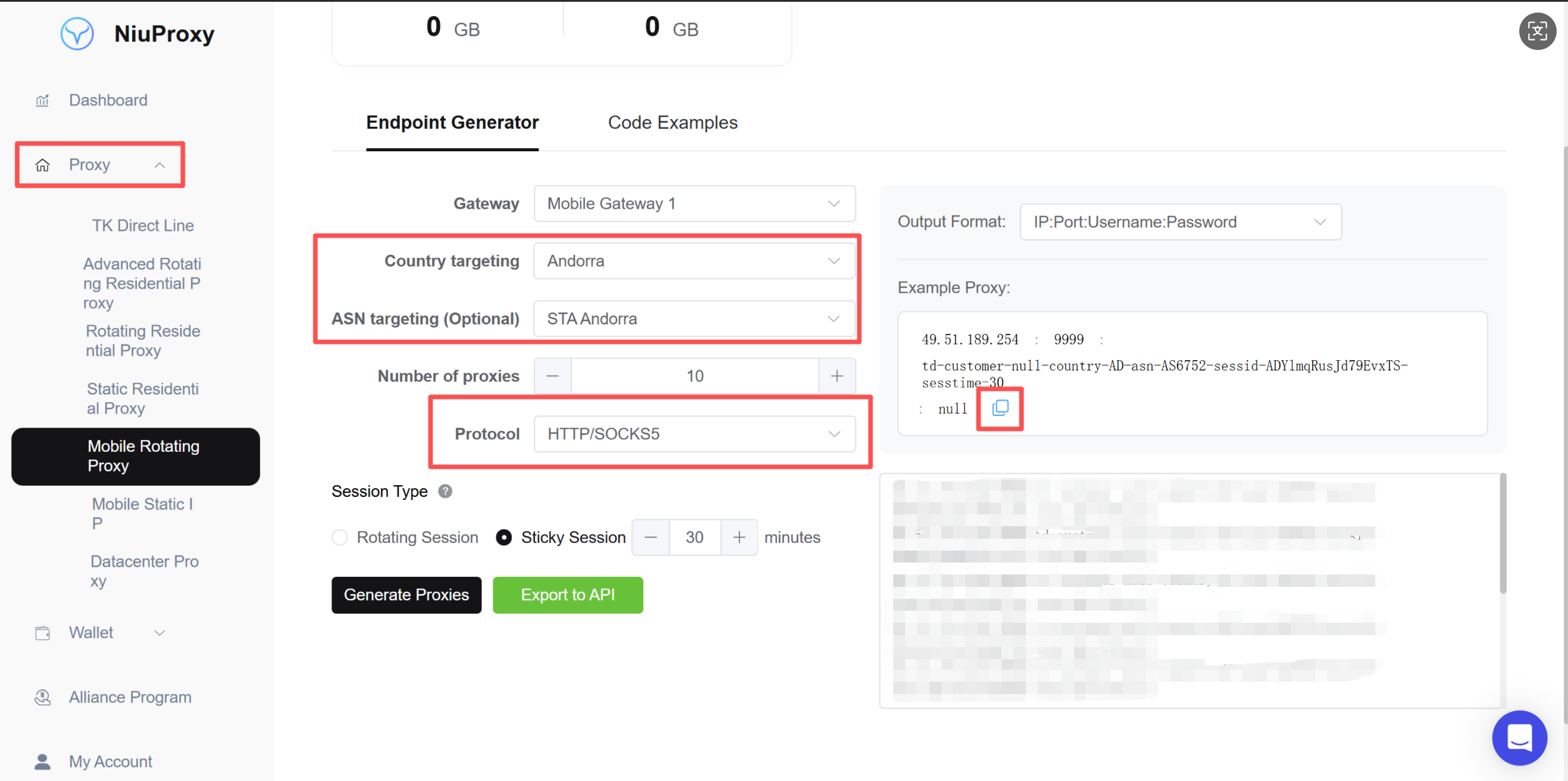
Step 1: Get Proxy Information
- Log in to NiuProxy management panel
- Go to "Proxy Management" page
- Record the following:
- Proxy server address: Gateway address
- Port number: Port number
- Username: Your username
- Password: Your password
Step 2: Open AdsPower
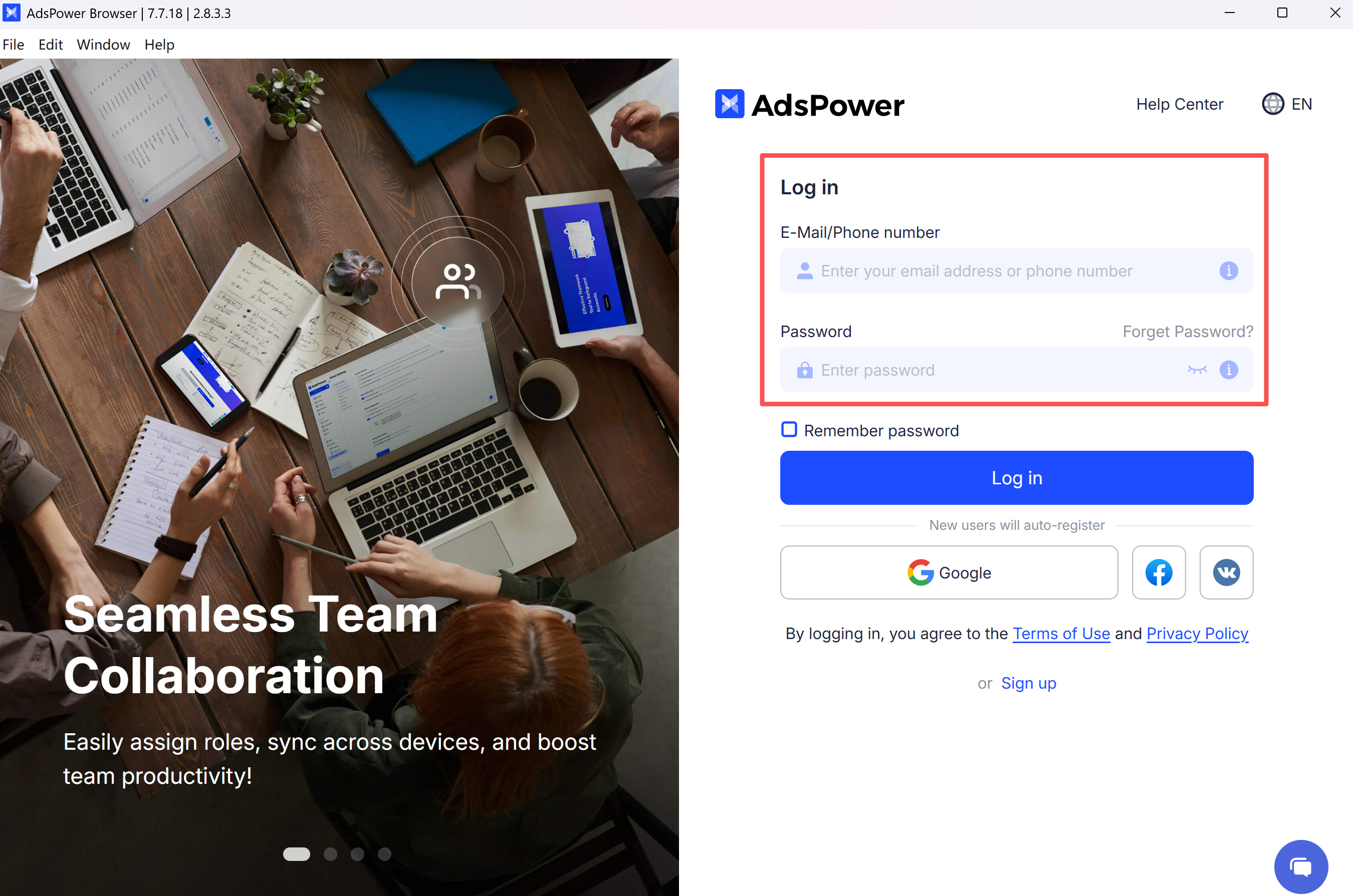
- Launch AdsPower application
- Log in to your AdsPower account
Step 3: Create a New Browser Profile
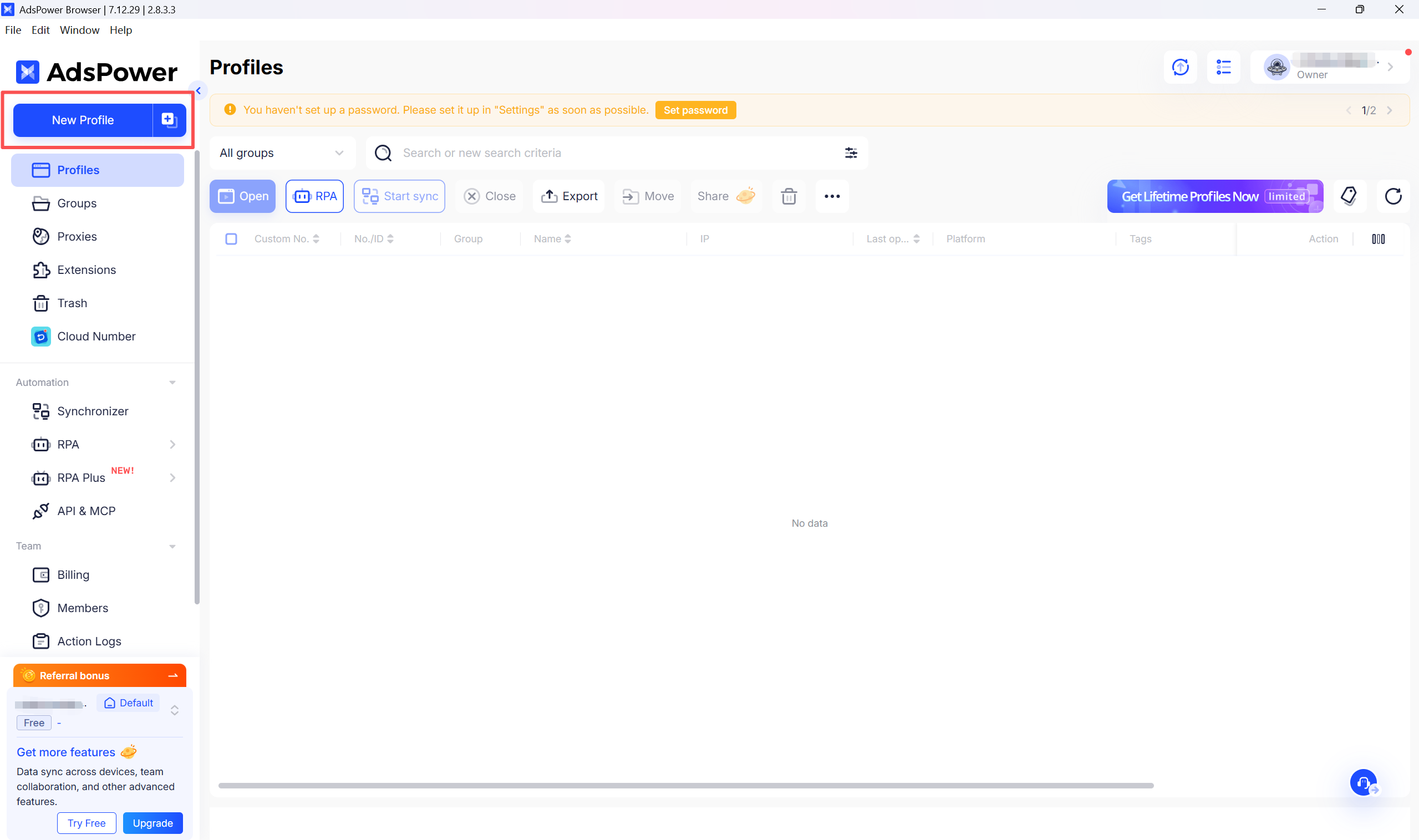
- Click "New Browser" on the main interface
- Or edit an existing browser profile
Step 4: Configure Proxy Settings
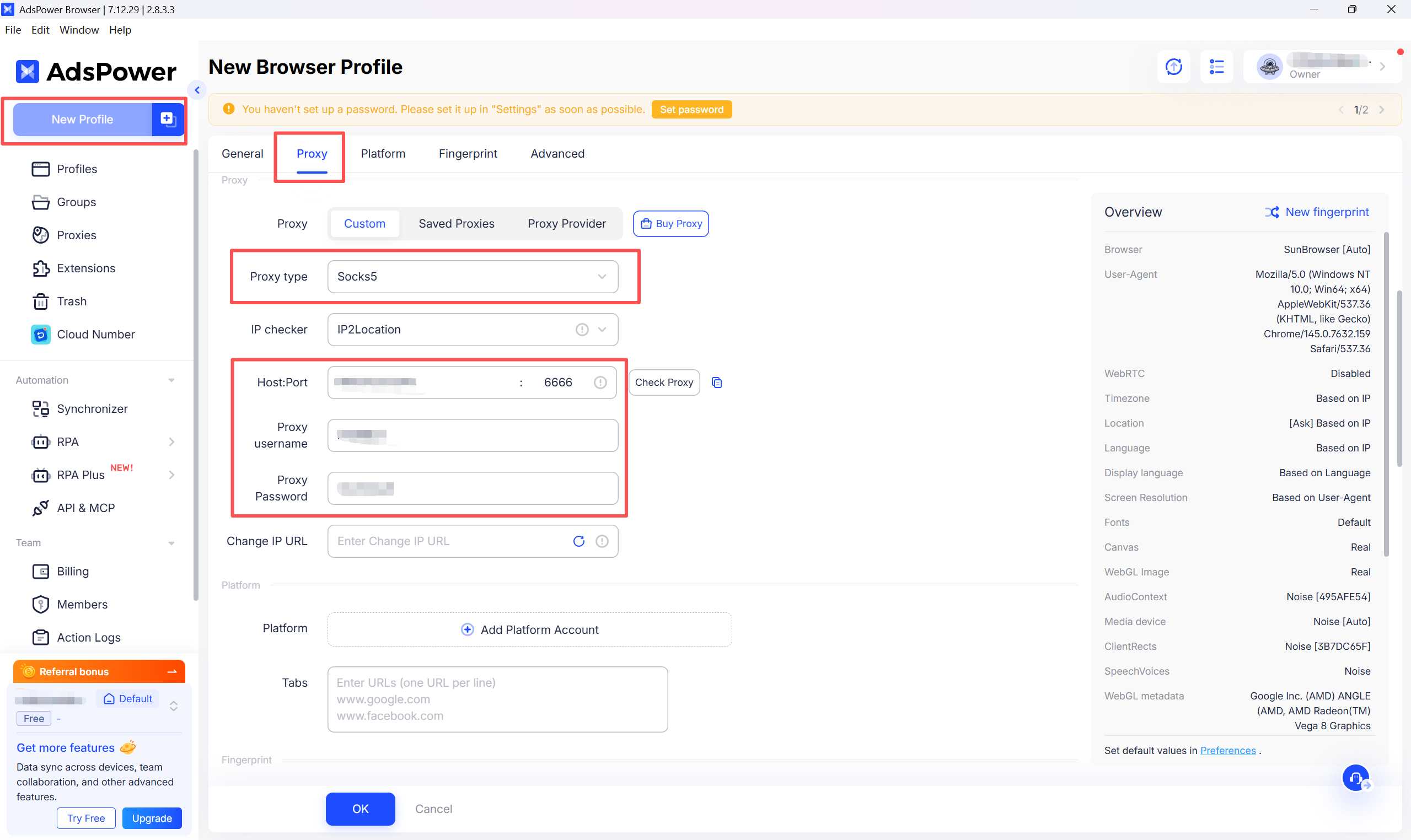
- In the browser configuration page, find the "Proxy" tab
- Select proxy type:
- HTTP: Suitable for most scenarios
- HTTPS: Requires encrypted connection
- SOCKS5: Requires lower-level protocol support
- Fill in proxy information (example):
Proxy Type: SOCKS5
Proxy Host: proxy.niuproxy.com
Port: xxxx
Username: your_username
Password: your_password- Optional: To specify a region, append a country code to your username — e.g.
username-US(United States),username-UK(United Kingdom)
Step 5: Test Proxy Connection
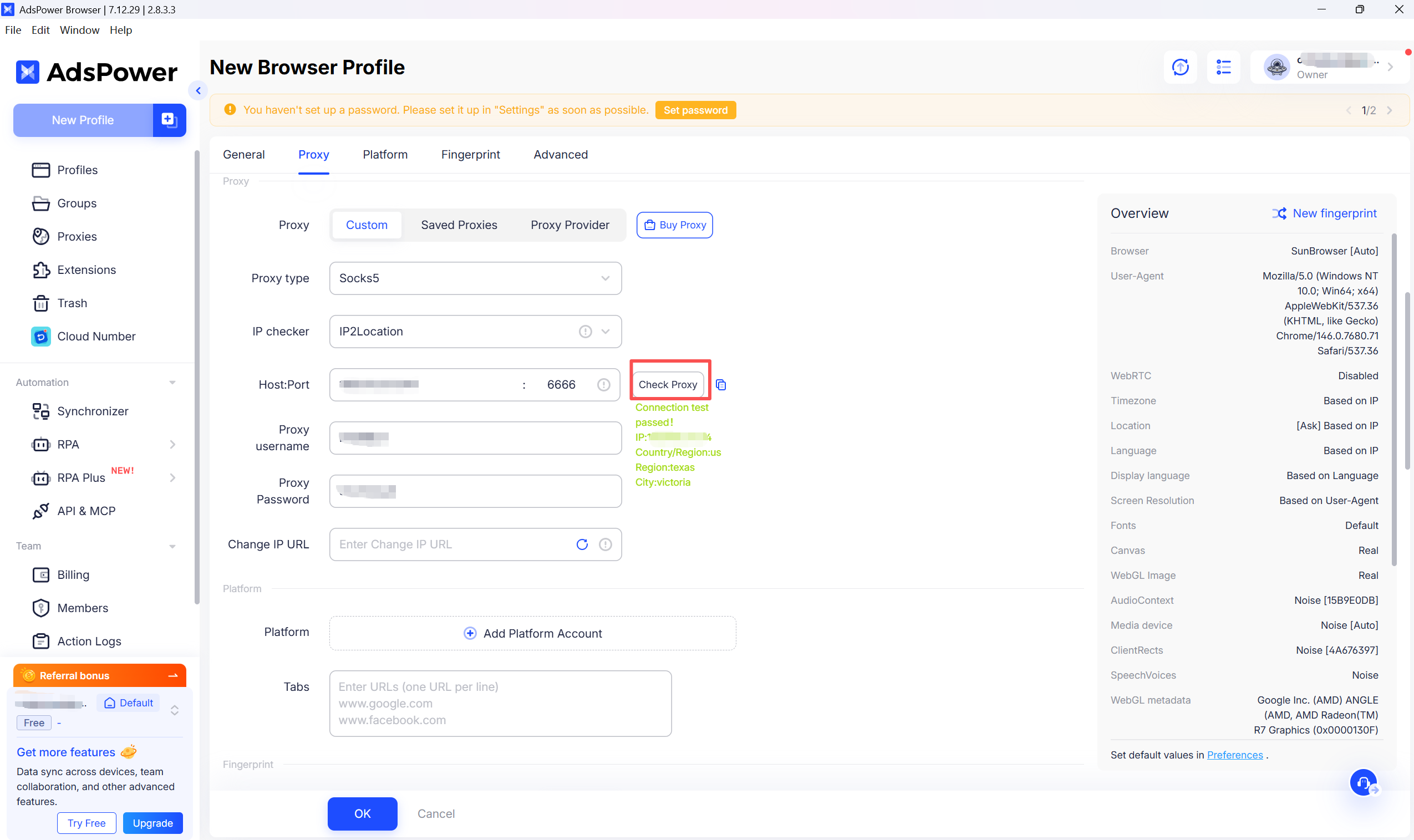
- Click "Test Proxy" or "Test Connection"
- Wait for test results
- Confirm the displayed IP address and location are correct
Step 6: Save Configuration
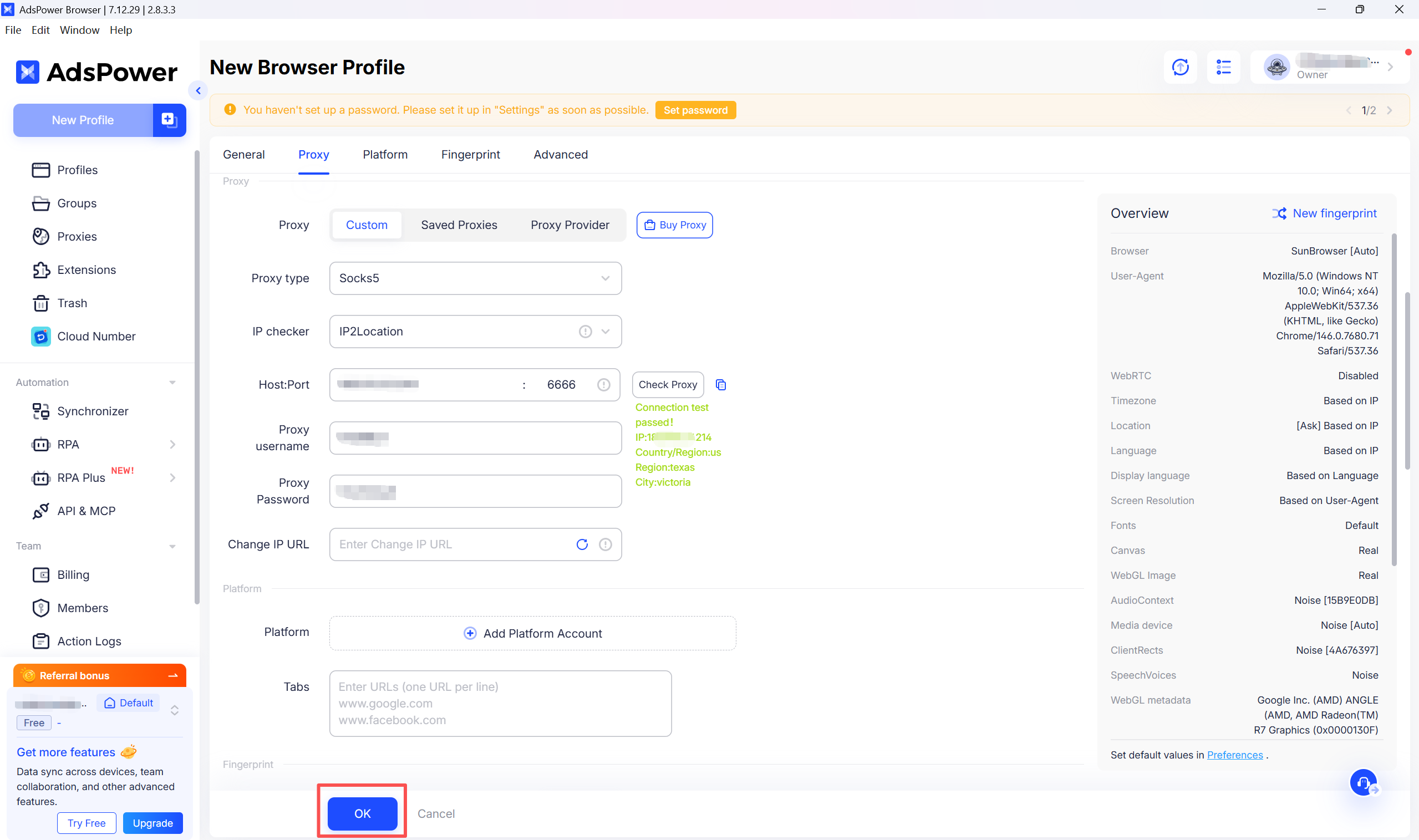
- Confirm all settings are correct
- Click "Save" or "OK"
- Profile creation complete
Advanced Configuration
Multiple Proxies
To use different proxies for different browser profiles:
- Repeat Steps 3–6 for each profile
- Assign a different proxy IP to each profile
- This achieves account isolation and prevents linkage
Proxy Rotation
AdsPower supports proxy rotation:
- In proxy settings, select "Use Proxy API"
- Configure the NiuProxy API endpoint (contact support to obtain)
- Set rotation rules: by time / by request count / manual
Fingerprint Configuration
To improve anonymity, configure the following fingerprint settings:
- Canvas Fingerprint: Enable Canvas noise
- WebGL Fingerprint: Enable WebGL randomization
- Timezone: Set to match the proxy IP region
- Language: Match the target region's language
- User-Agent: Use a real browser identifier
Troubleshooting
Q1: Proxy connection failed?
Checklist:
- Confirm proxy address and port are correct
- Verify username and password
- Check account balance
- Confirm IP whitelist settings (if enabled)
Solutions:
- Re-copy proxy info from the dashboard
- Remove any extra spaces
- Try a different port
- Contact NiuProxy support to check account status
Q2: Proxy is slow?
- Choose a proxy node closer to your target region
- Upgrade to a higher-tier plan
- Reduce the number of open browser windows
Q3: How to verify the proxy is working?
- Visit https://whoer.net in the AdsPower browser
- Check that the IP address shown is the proxy IP
- Confirm the geo-location matches expectations
- Check for DNS and WebRTC leaks
Q4: Why can't AdsPower browse the internet after configuring a proxy IP?
In mainland China's network environment, configuring a proxy IP alone is not enough to access external websites. A local proxy tool ("ladder") is required for traffic forwarding.
Please ensure all of the following are met:
- A local proxy tool is enabled (such as Clash or V2Ray)
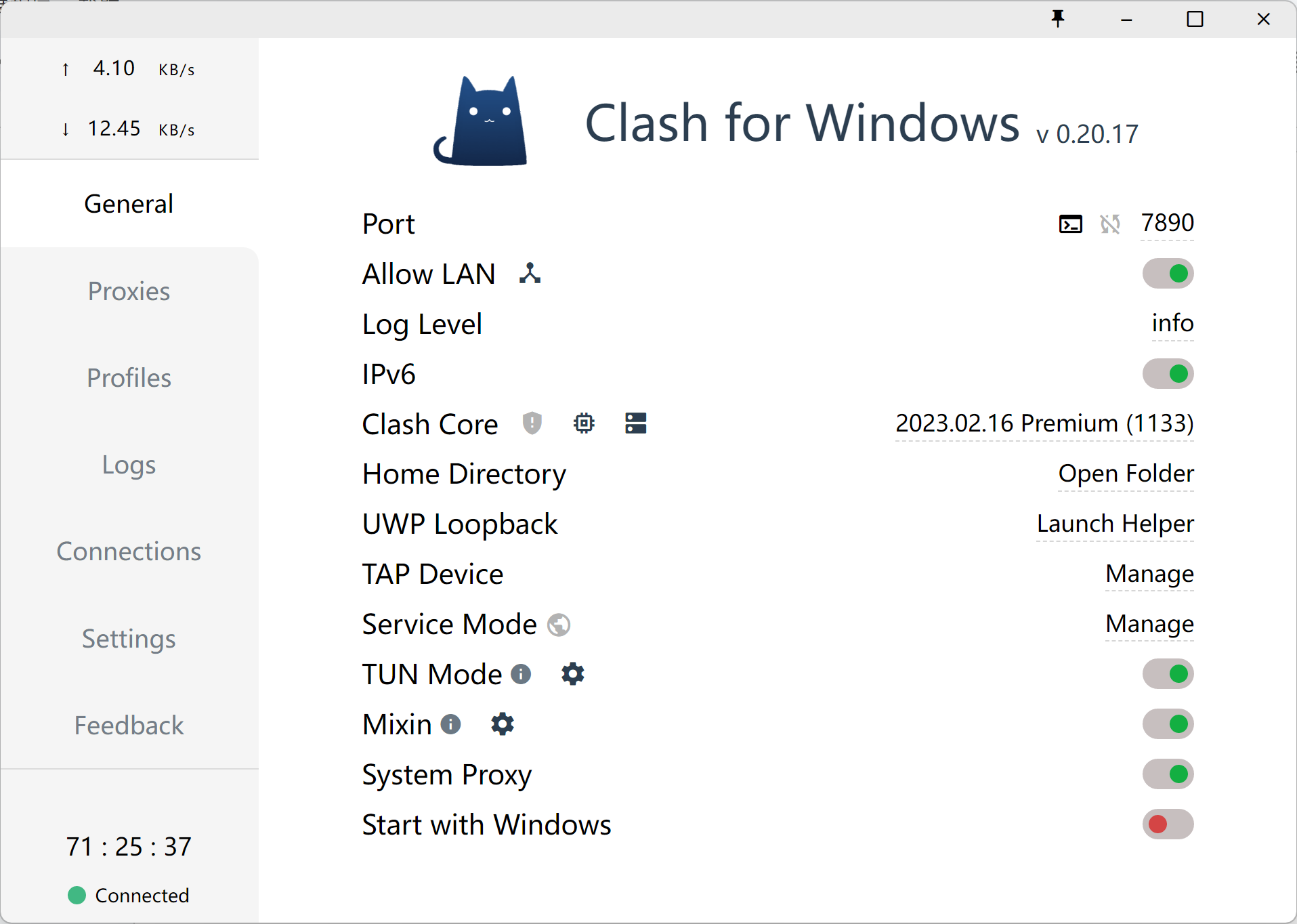
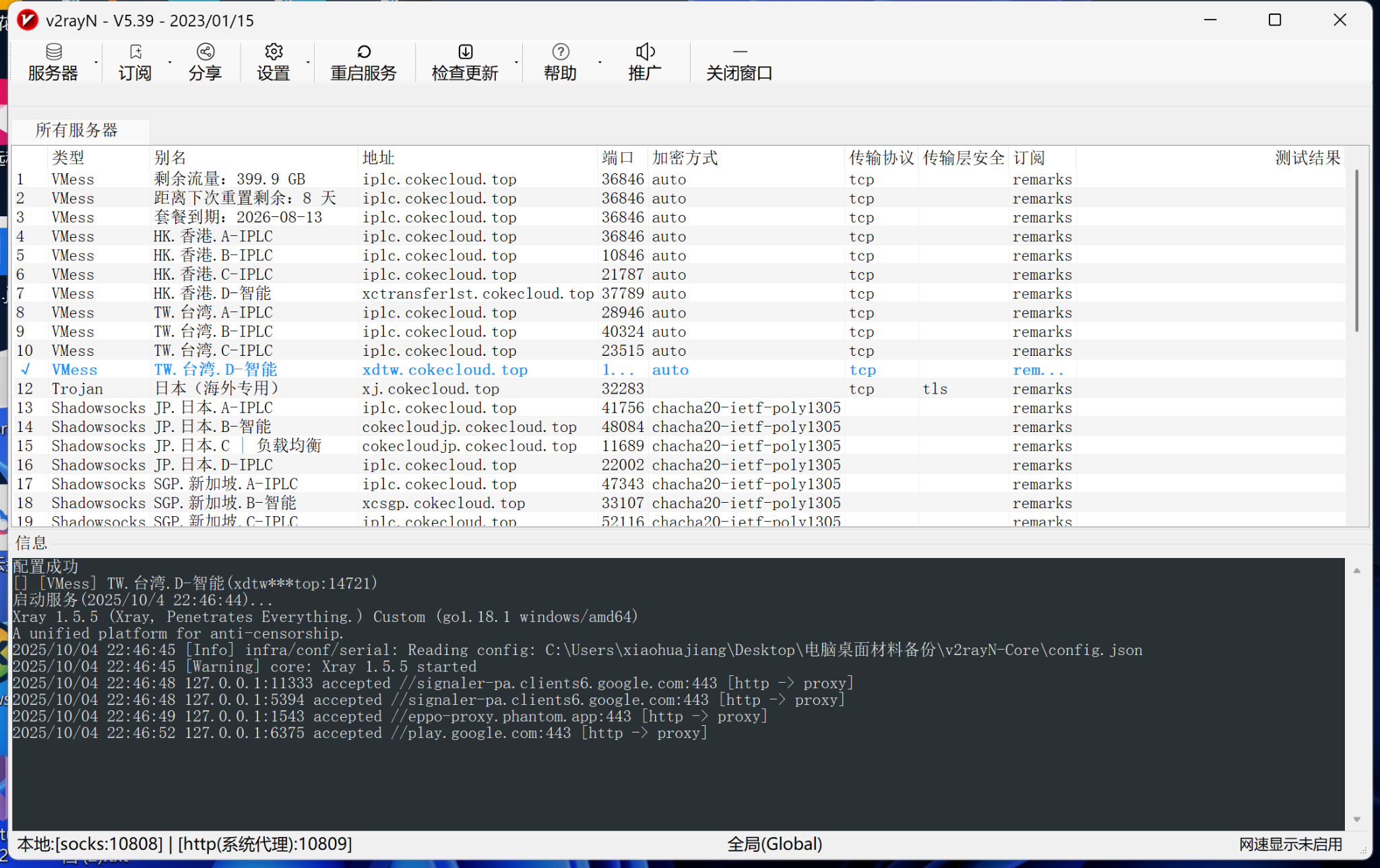
- The proxy tool is in a "connected" state
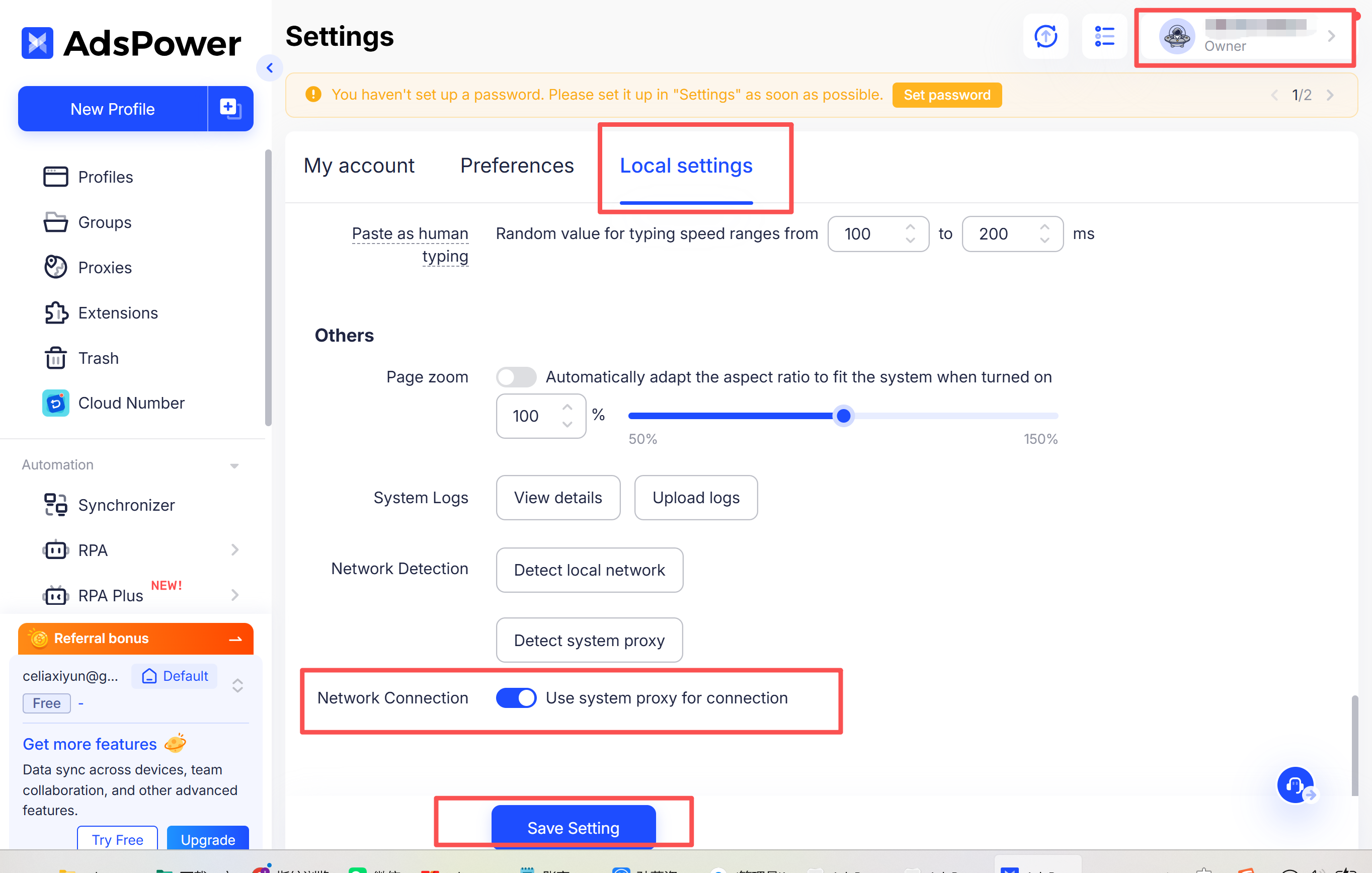
- AdsPower is correctly using the system proxy
Q5: What key settings must be enabled in AdsPower?
You must enable the system proxy in AdsPower for proper traffic routing.
Example path: Settings → Local Settings → Use System Proxy