Edge Browser TikTok Live Proxy Configuration Guide
Microsoft Edge is a Chromium-based web browser developed by Microsoft, known for fast startup, low resource usage, and deep Windows integration. This tutorial will guide you on how to configure NiuProxy in Edge browser.
Prerequisites
- Edge browser installed
- NiuProxy account with available proxy services
- Obtained proxy server address and authentication information
Configuration Steps
Step 1: Get Proxy Information
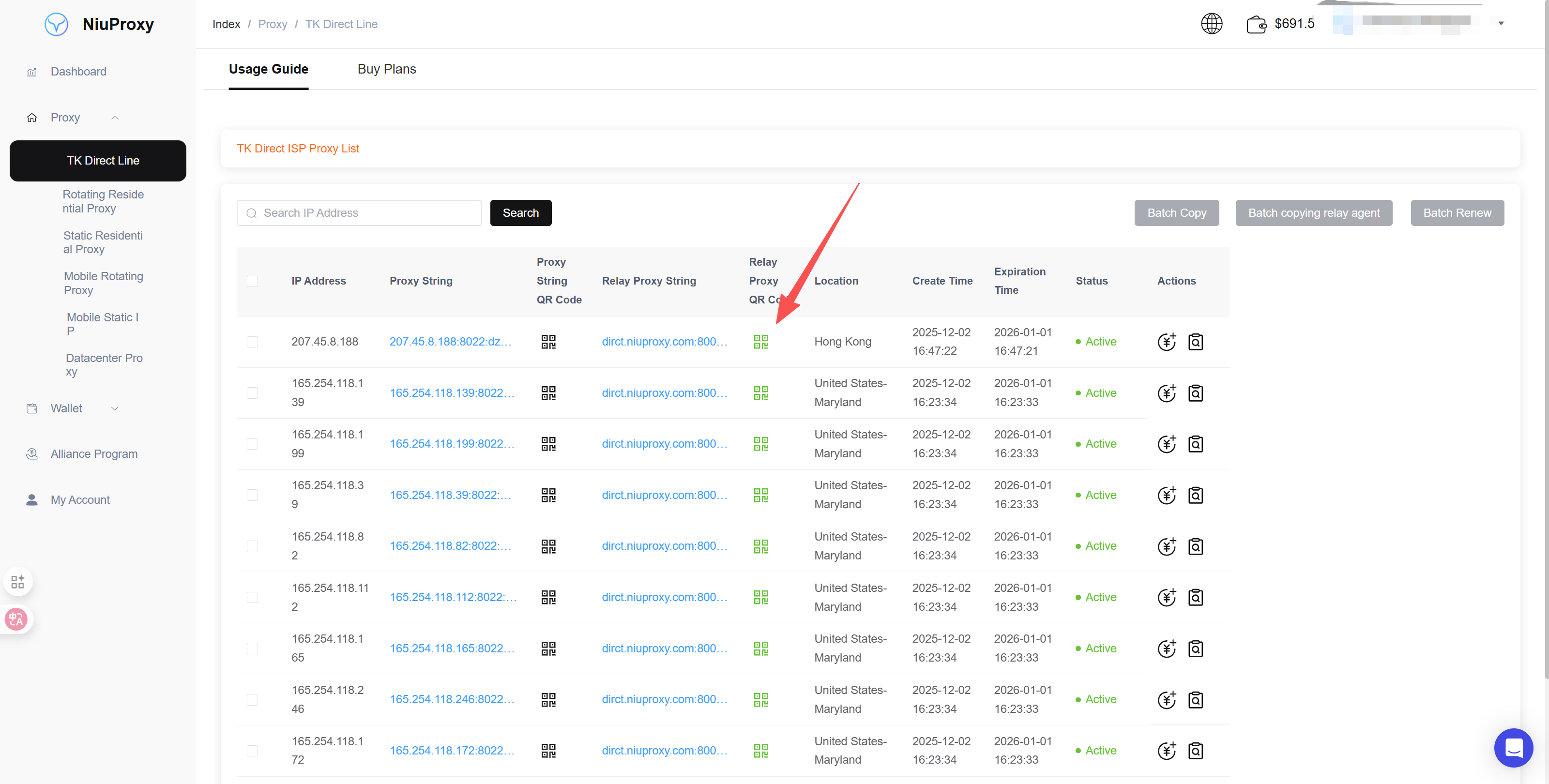
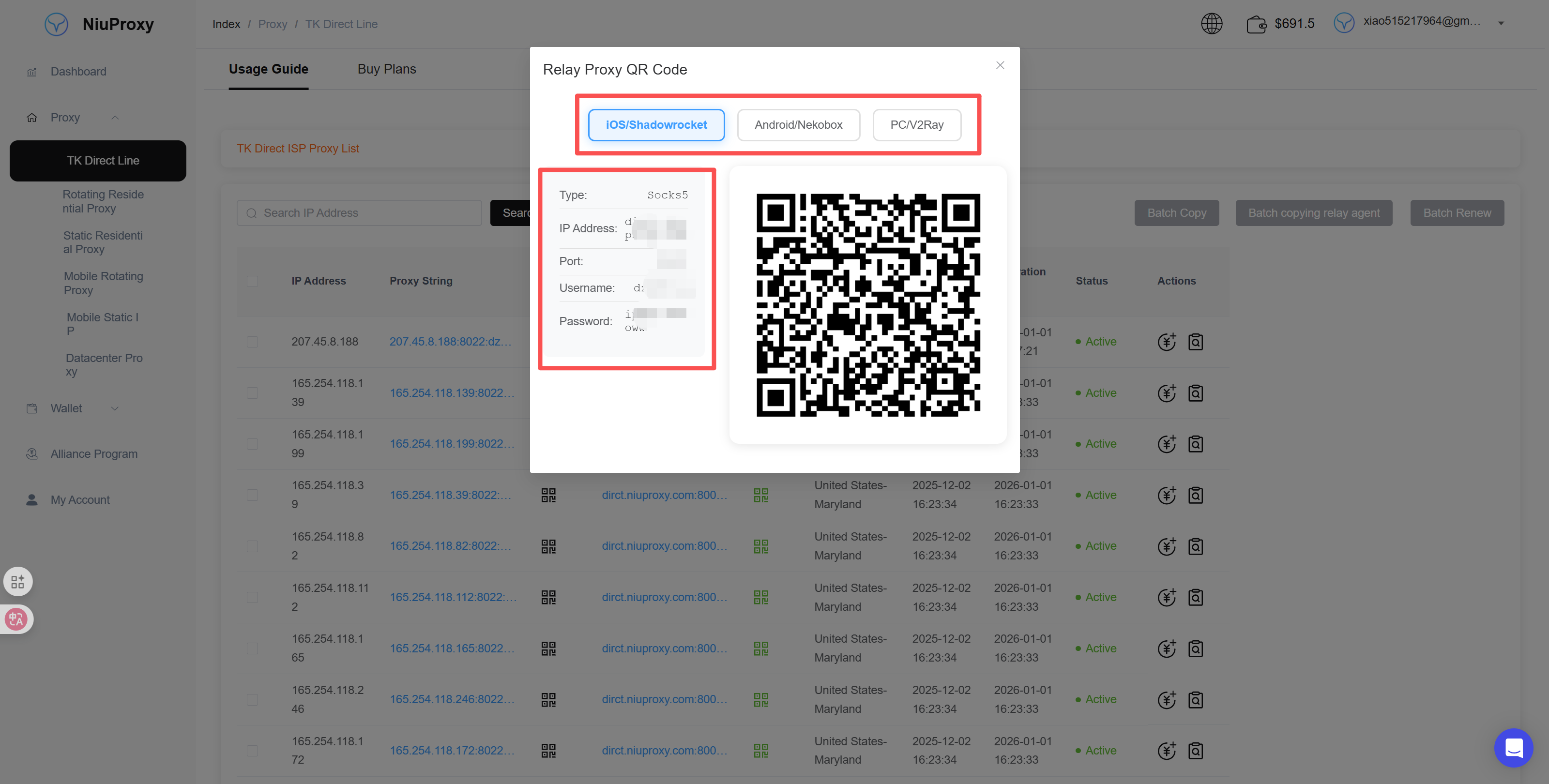
Log in to NiuProxy management panel and record the proxy server address, port, username, and password.
Step 2: Open Edge Settings
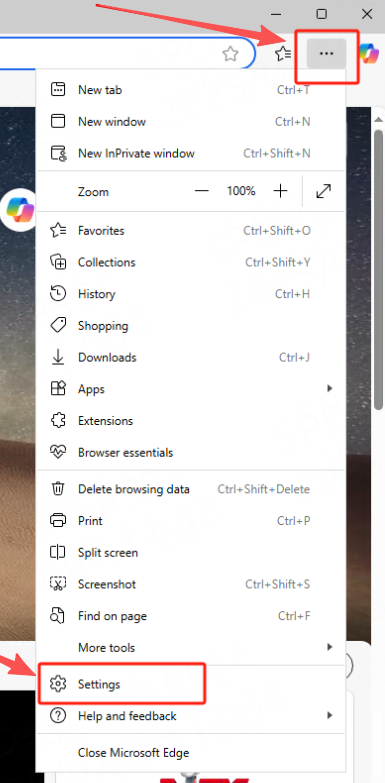
- Click the three-dot menu icon in the top right corner
- Select "Settings" from the dropdown menu
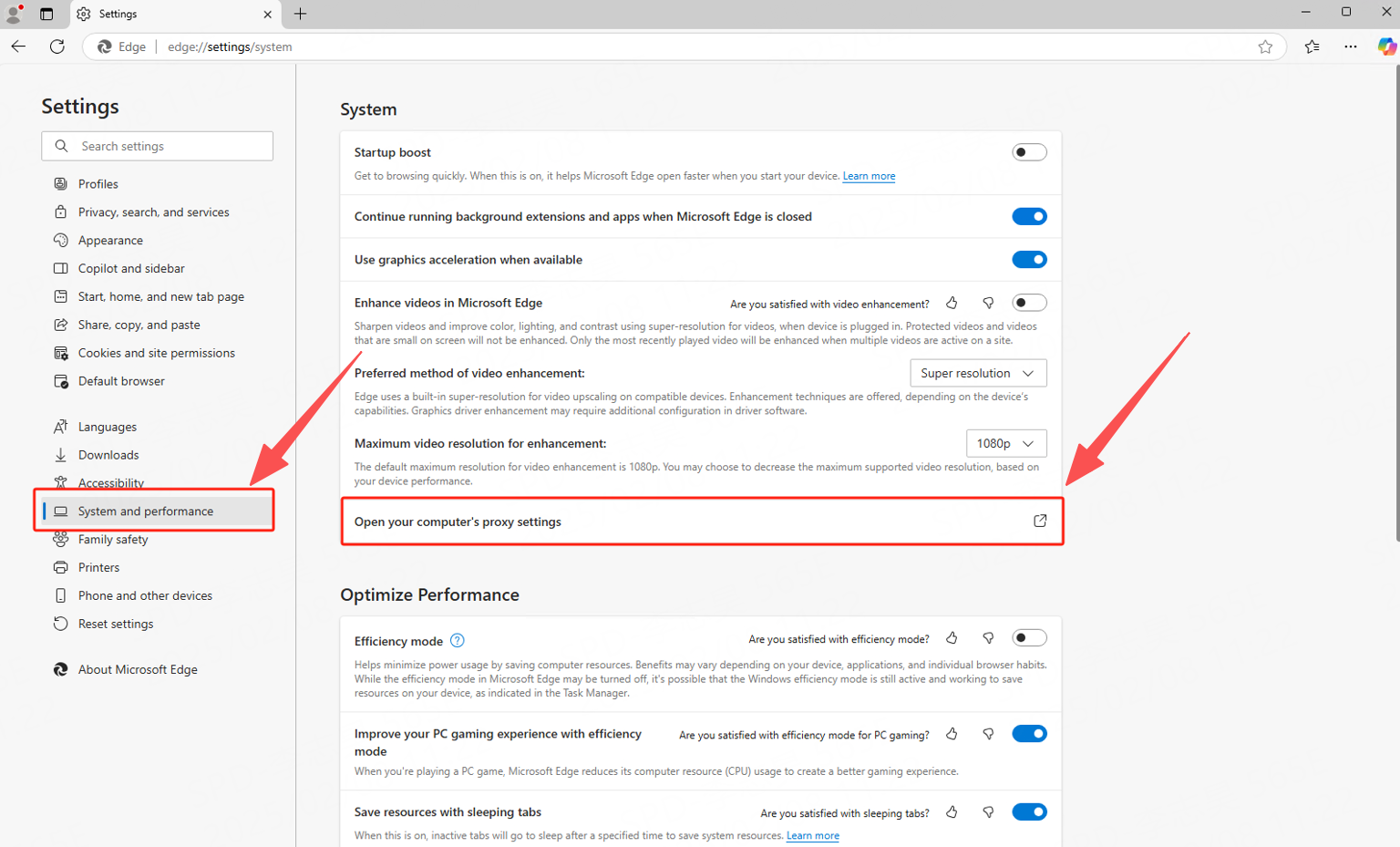
Step 3: Open System Proxy Settings
- Click "System and performance"
- Open "Open your computer's proxy settings"
Step 4: Configure Proxy
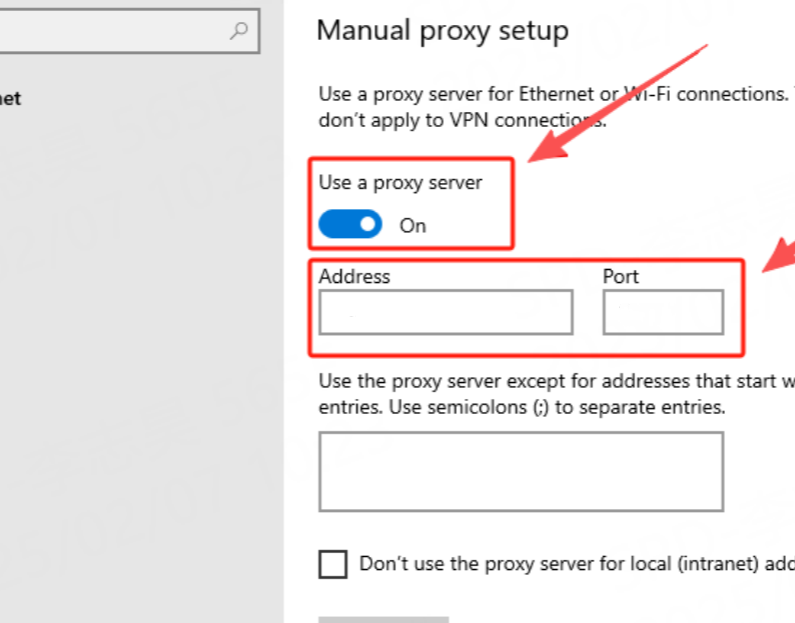
- Scroll to "Manual proxy setup"
- Enter host and port, then save
Step 5: Use Proxy
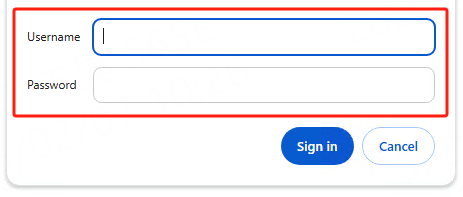
Enter proxy account and password when prompted.