Android TikTok Live Proxy Configuration Guide
This guide will help you quickly configure TikTok Live proxy services on Android devices using Nekobox.
Prerequisites
- Android device (version 5.0 or above recommended)
- Installed Nekobox app
- Obtained proxy server information (Server address, Port, Protocol type)
Configuration Steps
1. Get Proxy Information
First, log in to the NiuProxy management panel and obtain the following proxy information:
- Proxy address: dirct.niuproxy.com
- Port: As assigned by the system
- Protocol type: SOCKS5 or HTTP
- Username/Password: If authentication is required
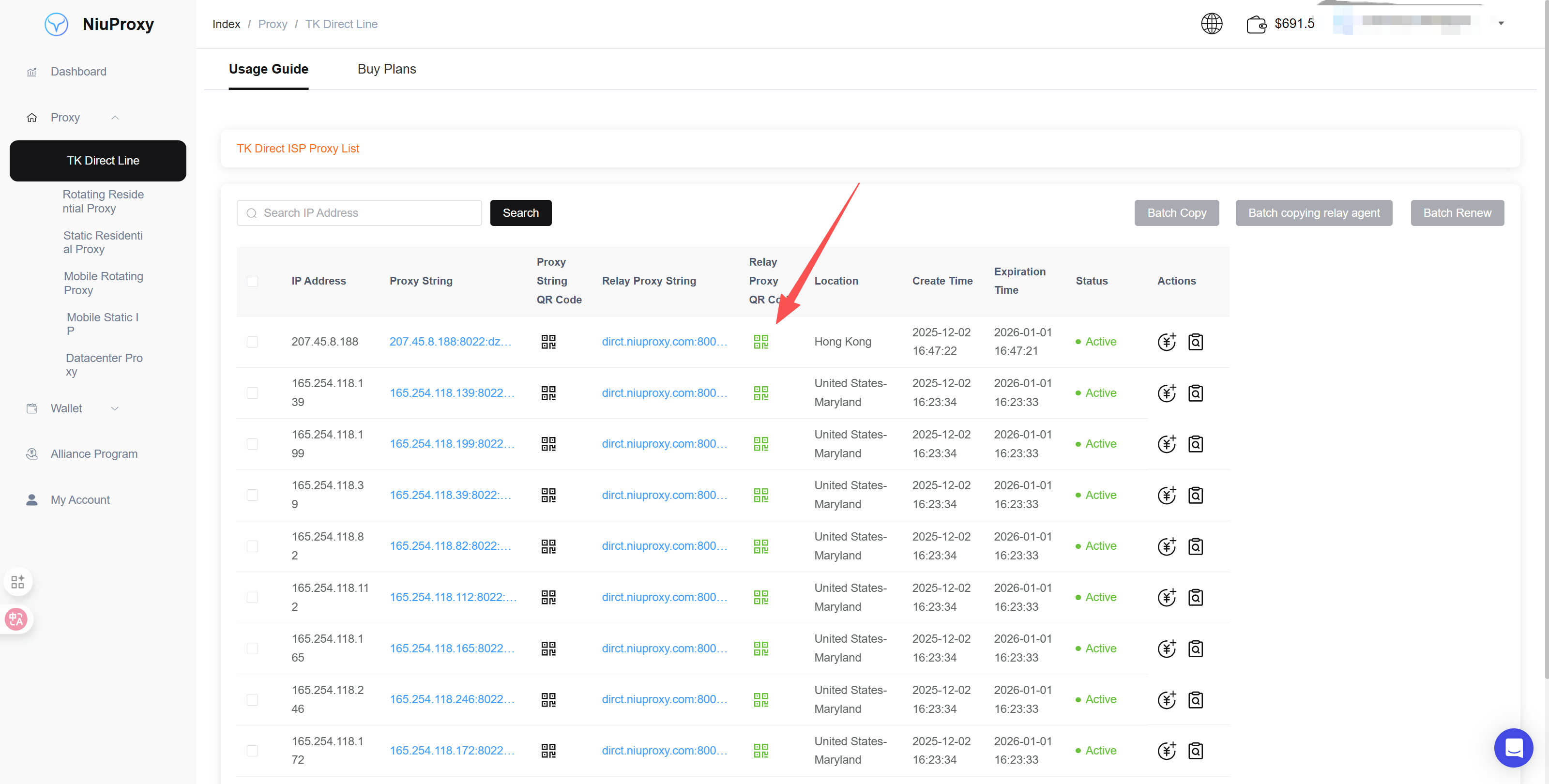
2. Launch Nekobox
Open the Nekobox app on your phone. If opening for the first time, you may need to grant VPN permissions.
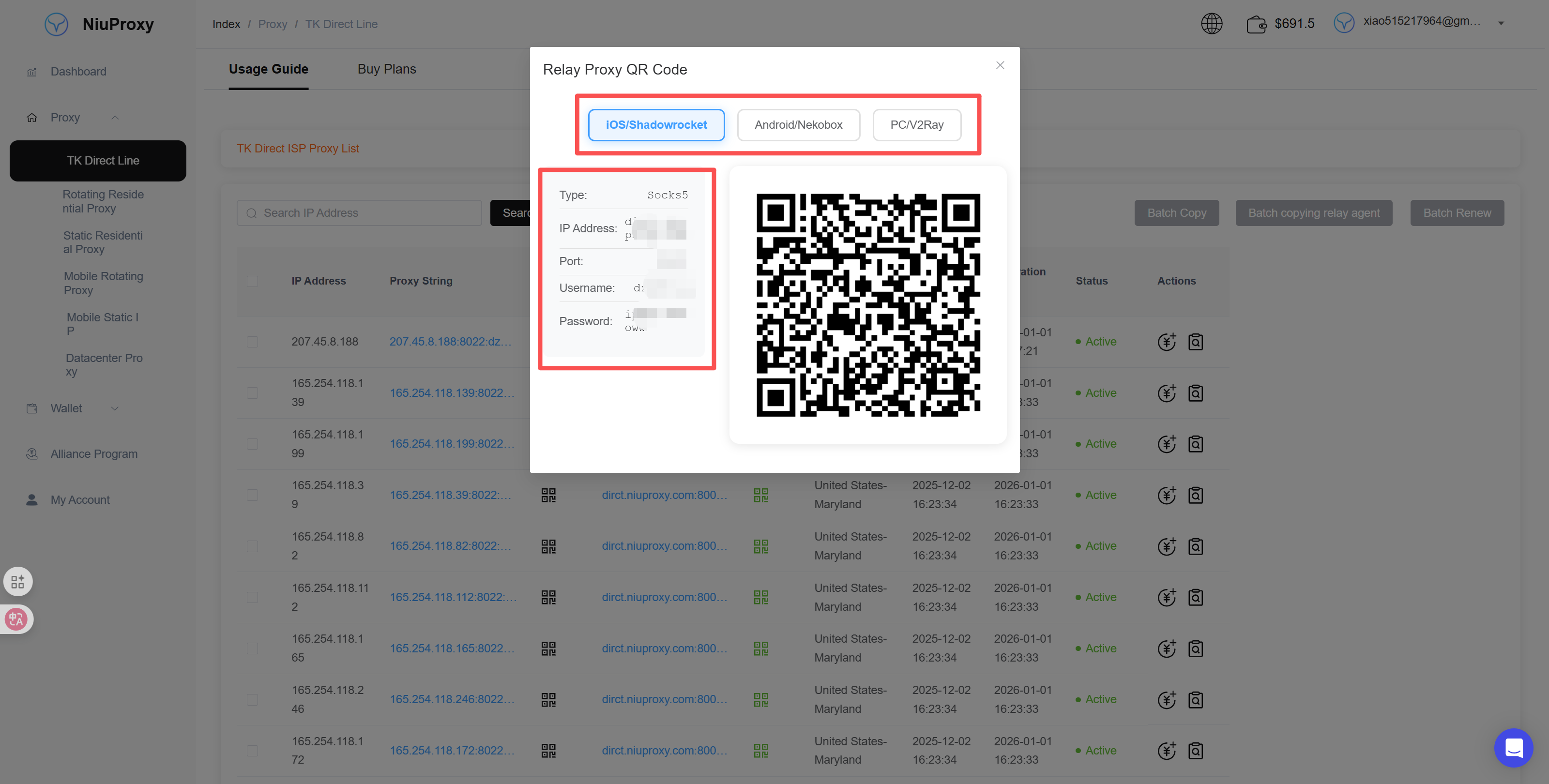
3. Add Proxy Node
- Click the "+" button to add a new node
- Select node type (SOCKS5 or HTTP)
- Fill in the proxy information:
- Server address: dirct.niuproxy.com
- Port number: Your assigned port
- Authentication information (if needed)
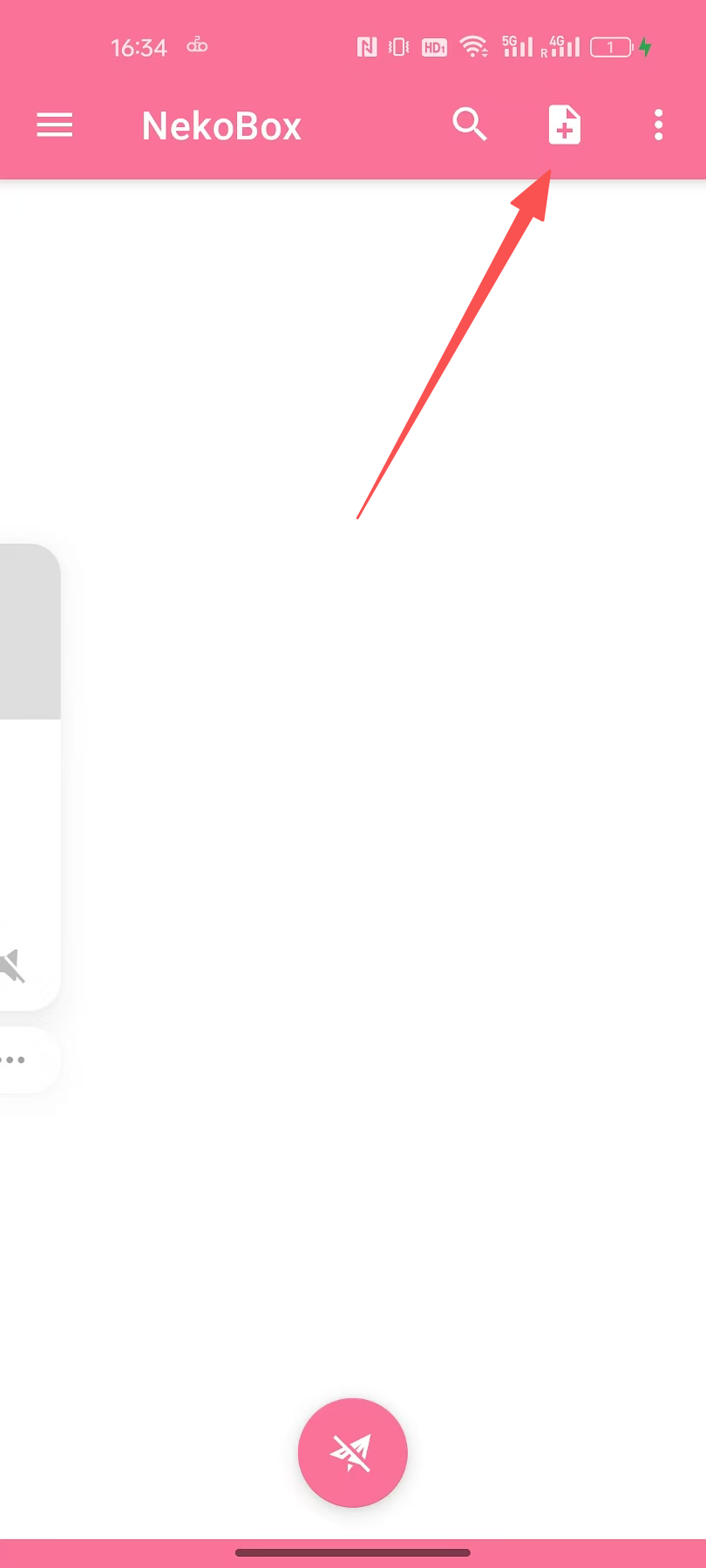
4. Test Connection
Click the "Test" button to check if the node connection is normal. If the test is successful, the latency (ms) will be displayed.
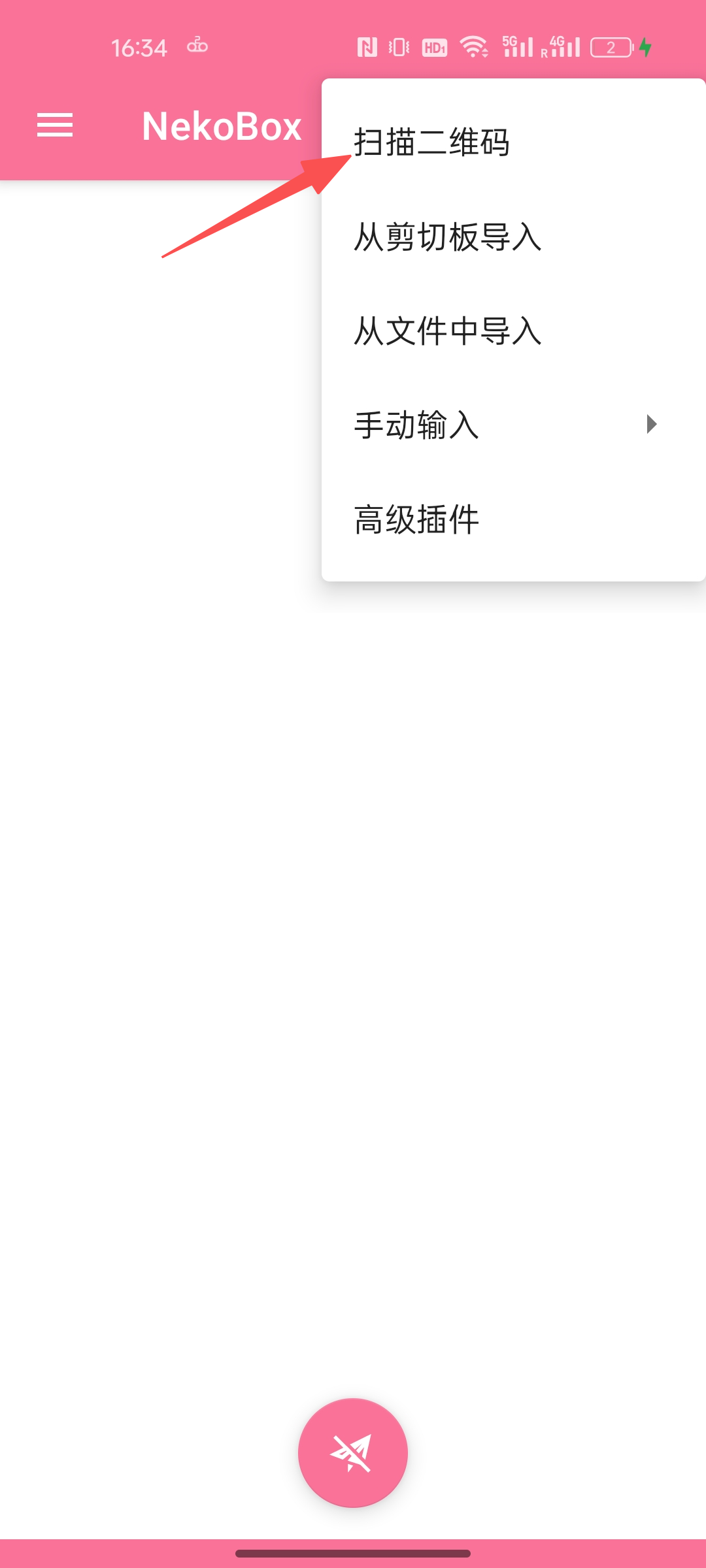
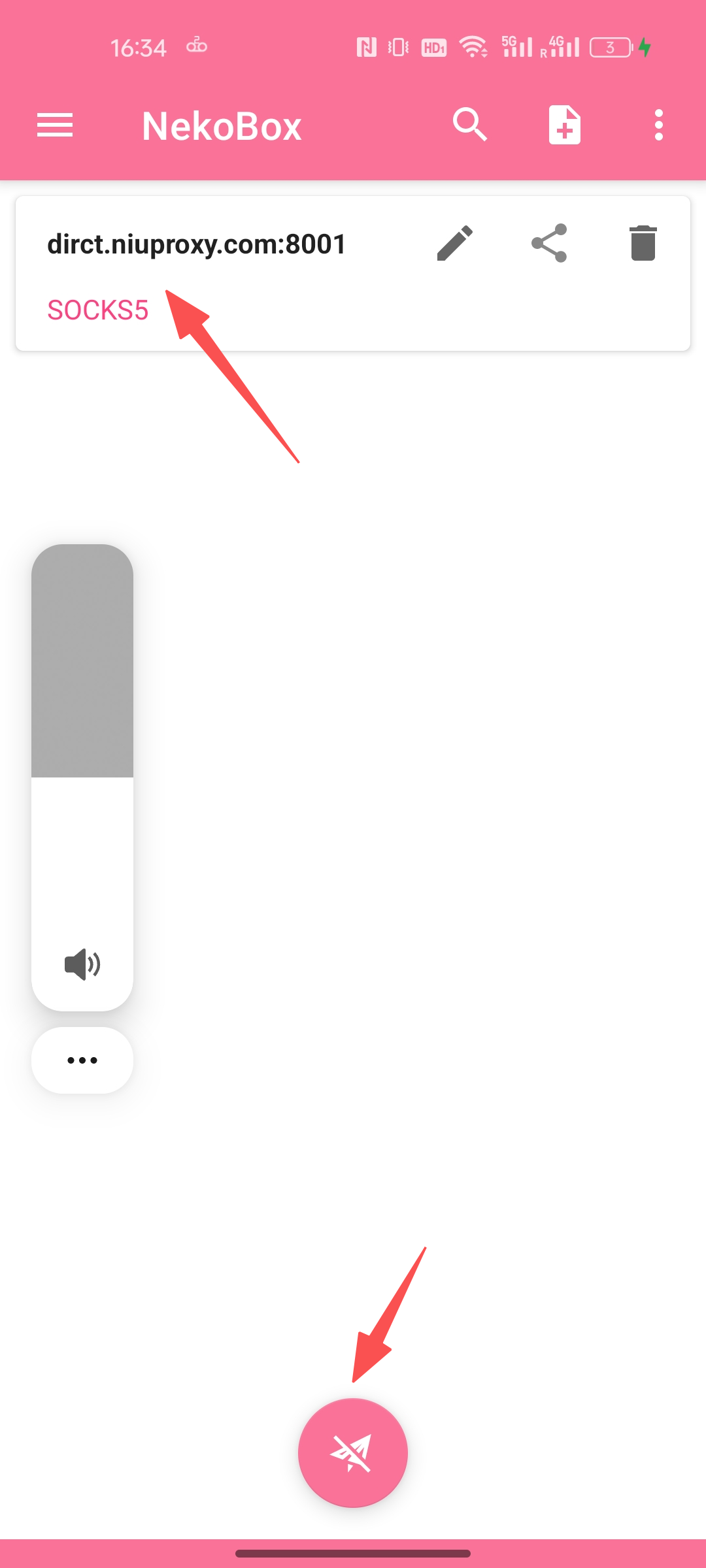
5. Connect to Proxy
- Select the proxy node you just added
- Click the connect button to start the proxy service
- On first use, you need to confirm allowing VPN connection
6. Verify Connection
Open a browser or TikTok app to verify if the proxy connection is successful. You can check your IP address by visiting whatismyipaddress.com.
Troubleshooting
Cannot Connect
- Verify proxy server address and port are correct
- Check if device network is normal
- Try switching proxy protocol (SOCKS5 ⇄ HTTP)
High Latency or Slow Speed
- Try connecting to another proxy server
- Check device network environment
- Verify no other VPN apps are conflicting
No Network After Connecting
- Restart the Nekobox app
- Clear app data and reconfigure
- Check if phone's VPN permissions are enabled
Notes
- Keep Nekobox app running in the background to maintain the proxy connection
- Some devices may need to disable battery optimization to prevent app from being killed
- If you encounter any issues, contact NiuProxy customer support